Reports aur payroll
Timesheets aur client billing
Project-wise timesheet se har insaan aur project ke approved aur pending hours dekhiye, client ke hisaab se filter kijiye, aur billing ke liye CSV download kijiye.
Timesheet kya dikhata hai
Reports page par Timesheet by project panel is mahine ke har insaan ke har project ke hours dikhata hai. Table ke upar Total, Approved aur Awaiting approval dikhte hain. Har project column uski team ya client bhi dikhata hai.
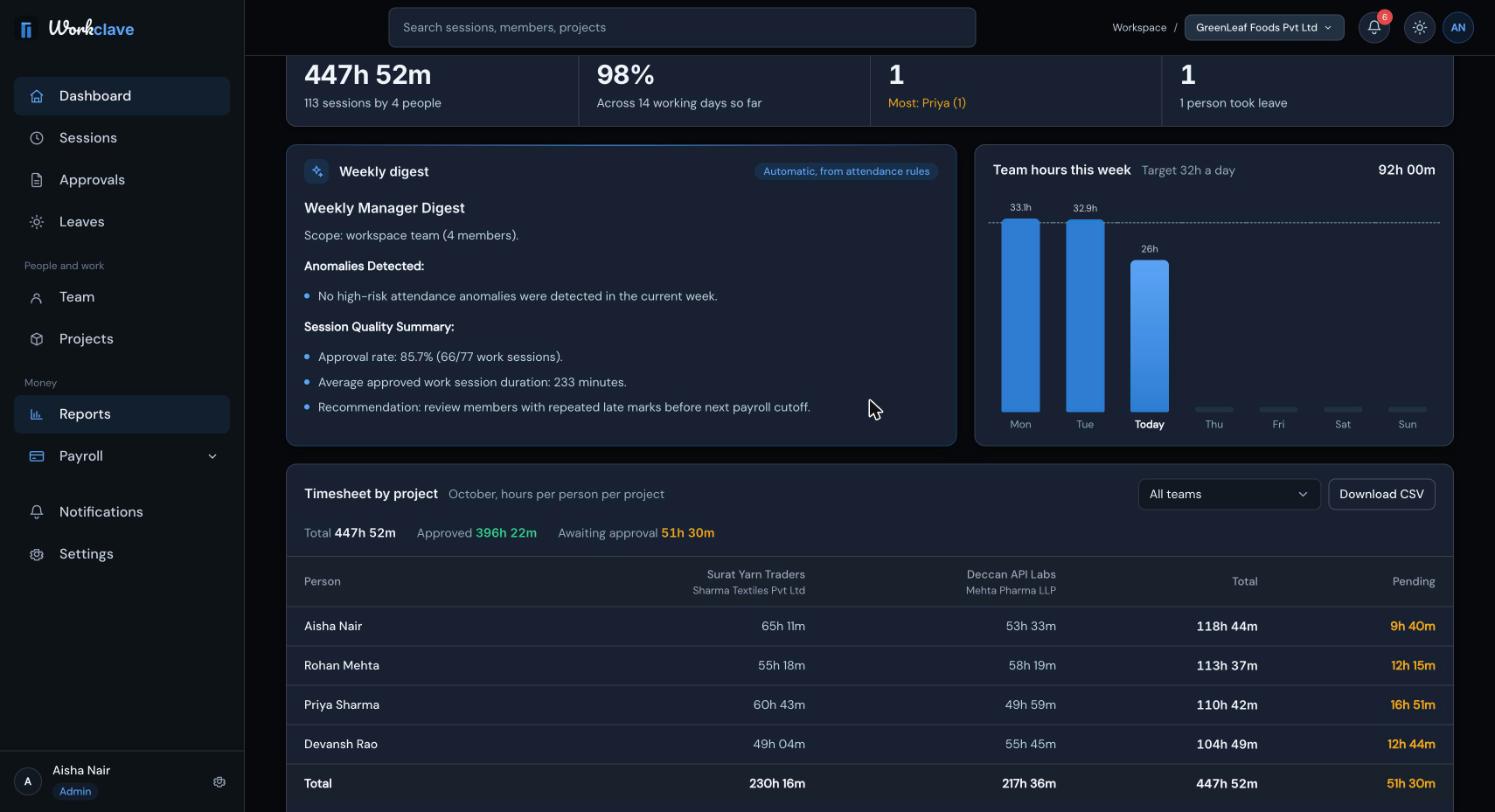
Team ya client ke hisaab se filter kijiye
Ek team (ya client) chunne ke liye Download CSV ke bagal wali list use kijiye. Sirf us team ke projects ka time gina jaata hai. Logon ko narrow karne ke liye page ke upar wali department list use kijiye.
CSV download kijiye
- Reports par jaaiye aur Timesheet by project dhoondhiye.
- Team ya client chuniye, ya sab rehne dijiye.
- Download CSV par click kijiye.
File ka naam timesheet-by-project-2026-10.csv jaisa hota hai. Isme yeh columns hain:
- Employee.
- Har project ka ek column, “Project (Client)” naam se.
- Total hours, Approved hours aur Pending hours.
- Aakhri row Total naam ki.
Hours do decimal places wale numbers hain. Jaise, 7.50 ka matlab 7 ghante 30 minute.
Timesheet se client ko bill kijiye
- Mahine ke saare sessions approve kijiye. Check kijiye ki client ke liye Awaiting approval 0 hai.
- Timesheet filter mein client chuniye.
- Download CSV par click kijiye.
- File ko spreadsheet mein kholiye. Approved hours ko apne hourly rate se multiply kijiye.
- GST jaise taxes apne invoicing tool mein jodiye.
Workclave hours record karta hai, paise nahi. Billing rates abhi save nahi hote, isliye project form ka Default billing rate use nahi hota.
Pichhle mahine ke timesheets
Reports page sirf current month dikhata hai. Mahine ke aakhri din CSV download kar lijiye. Pichhle mahine ke liye Sessions page use kijiye:
- Sessions par jaaiye aur Custom par click kijiye.
- Mahine ka pehla aur aakhri din chuniye.
- All projects mein project chuniye.
- 100 per page chuniye.
- Export CSV par click kijiye. Aur pages hon to Next ke saath dohraiye.
Sessions CSV mein Member, Team, Project, Date, Start, End, Duration aur Status columns hote hain. Iska Team column insaan ki team dikhata hai, project ka client nahi. Export CSV sirf current page ki rows save karta hai.
Timesheet kya ginta hai
- Finished work sessions jo approved hain ya approval ka wait kar rahe hain.
- Rejected sessions, chal rahe sessions ya lunch breaks nahi.
- Bina project wale sessions No project ke neeche dikhte hain.
Screenshots English interface ke hain.
Related articles
CA firm ke liye poora setup: clients, har client ke vendors, staff, har vendor par log hua time, approval aur billing ke liye har client ki monthly timesheet CSV.
Projects add kijiye, unhe team ya client se jodiye, members assign kijiye, status badliye aur project details padhiye.
Reports page is mahine ke hours, attendance, late check-ins, leave, weekly digest, project-wise timesheet aur attendance register dikhata hai.
Jaaniye har session ko kaun review karta hai, timesheets kaise approve ya wapas bhejein, aur ek saath kai kaise approve karein.