Reports and payroll
Timesheets and client billing
Use the timesheet by project to see approved and pending hours per person and project, filter by client, and download a CSV for billing.
What the timesheet shows
On the Reports page, the Timesheet by project panel shows this month's hours for each person on each project. Above the table you see Total, Approved and Awaiting approval. Each project column also shows its team or client.
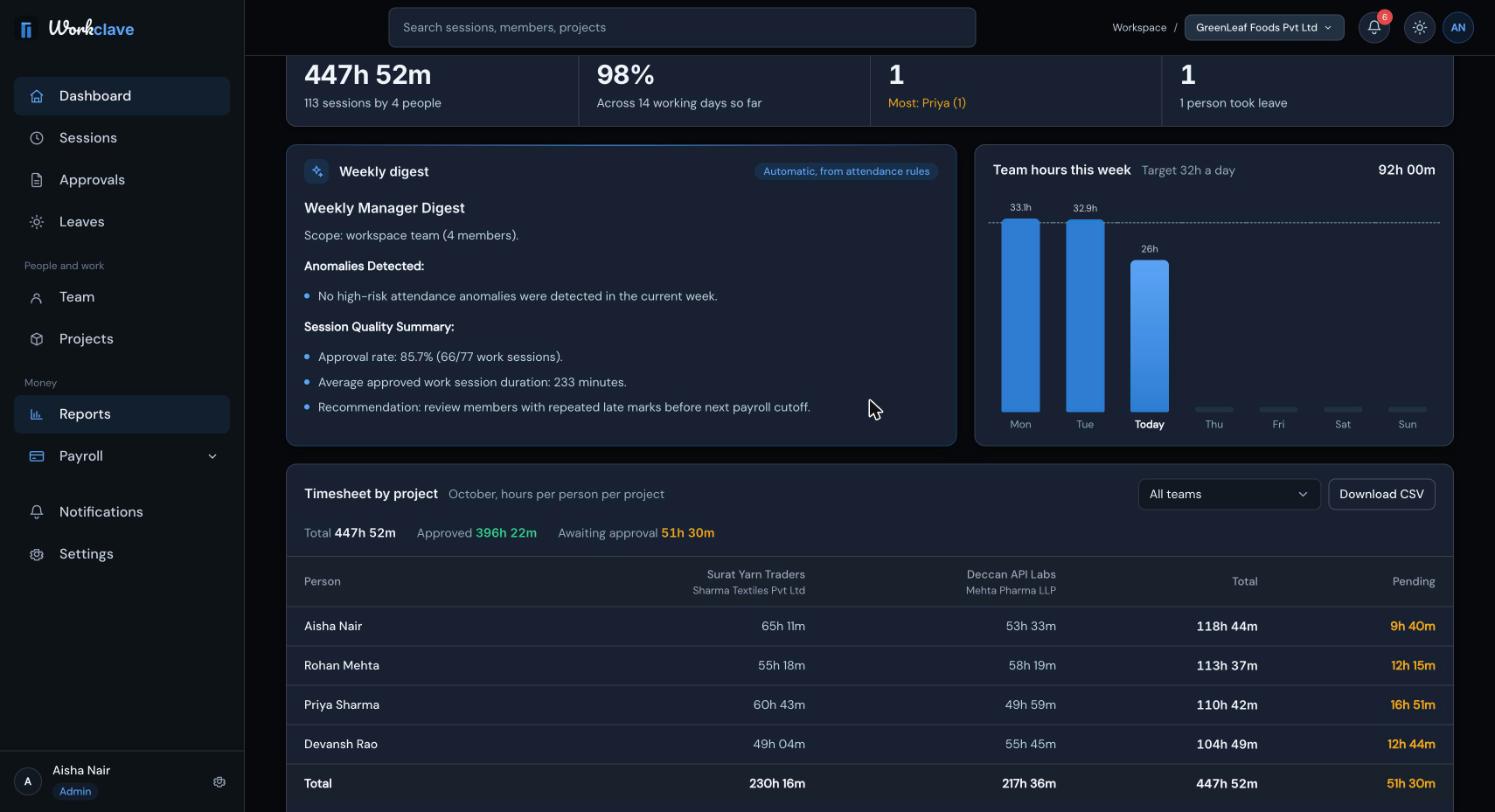
Filter by team or client
Use the list next to Download CSV to choose one team (or client). Only time on that team's projects is counted. Use the department list at the top of the page to narrow the people.
Download the CSV
- Go to Reports and find Timesheet by project.
- Choose a team or client, or keep all.
- Click Download CSV.
The file is named like timesheet-by-project-2026-10.csv. It has these columns:
- Employee.
- One column per project, named “Project (Client)”.
- Total hours, Approved hours and Pending hours.
- A last row called Total.
Hours are decimal numbers with two places. For example, 7.50 means 7 hours 30 minutes.
Bill a client from the timesheet
- Approve all sessions for the month. Check that Awaiting approval is 0 for the client.
- Choose the client in the timesheet filter.
- Click Download CSV.
- Open the file in a spreadsheet. Multiply the Approved hours by your hourly rate.
- Add taxes such as GST in your invoicing tool.
Workclave records hours, not money. Billing rates are not stored yet, so the Default billing rate on the project form is not used.
Timesheets for a past month
The Reports page shows only the current month. Download the CSV on the last day of the month. For an earlier month, use the Sessions page:
- Go to Sessions and click Custom.
- Pick the first and last day of the month.
- Choose a project in All projects.
- Choose 100 per page.
- Click Export CSV. Repeat with Next if there are more pages.
The Sessions CSV has the columns Member, Team, Project, Date, Start, End, Duration and Status. Its Team column shows the person's team, not the project's client. Export CSV saves only the rows on the current page.
What the timesheet counts
- Finished work sessions that are approved or waiting for approval.
- Not rejected sessions, running sessions or lunch breaks.
- Sessions without a project appear under No project.
Related articles
A complete setup for a CA firm: clients, each client's vendors, staff, time logged per vendor, approval and a monthly timesheet CSV per client for billing.
Add projects, link them to a team or client, assign members, change status and read project details.
The Reports page shows this month's hours, attendance, late check-ins, leave, a weekly digest, a timesheet by project and the attendance register.
Learn who reviews each session, how to approve or send back timesheets, and how to approve many at once.