Reports and payroll
Run payroll
Calculate a month's payroll from attendance, review and adjust payslips, approve the run, pay through your bank and mark it paid.
The four steps
Payroll has four steps: Calculate, Review and adjust, Approve and Pay. Open Payroll in the left menu. It has Summary, Process payroll and Salary advances.
The Payroll summary
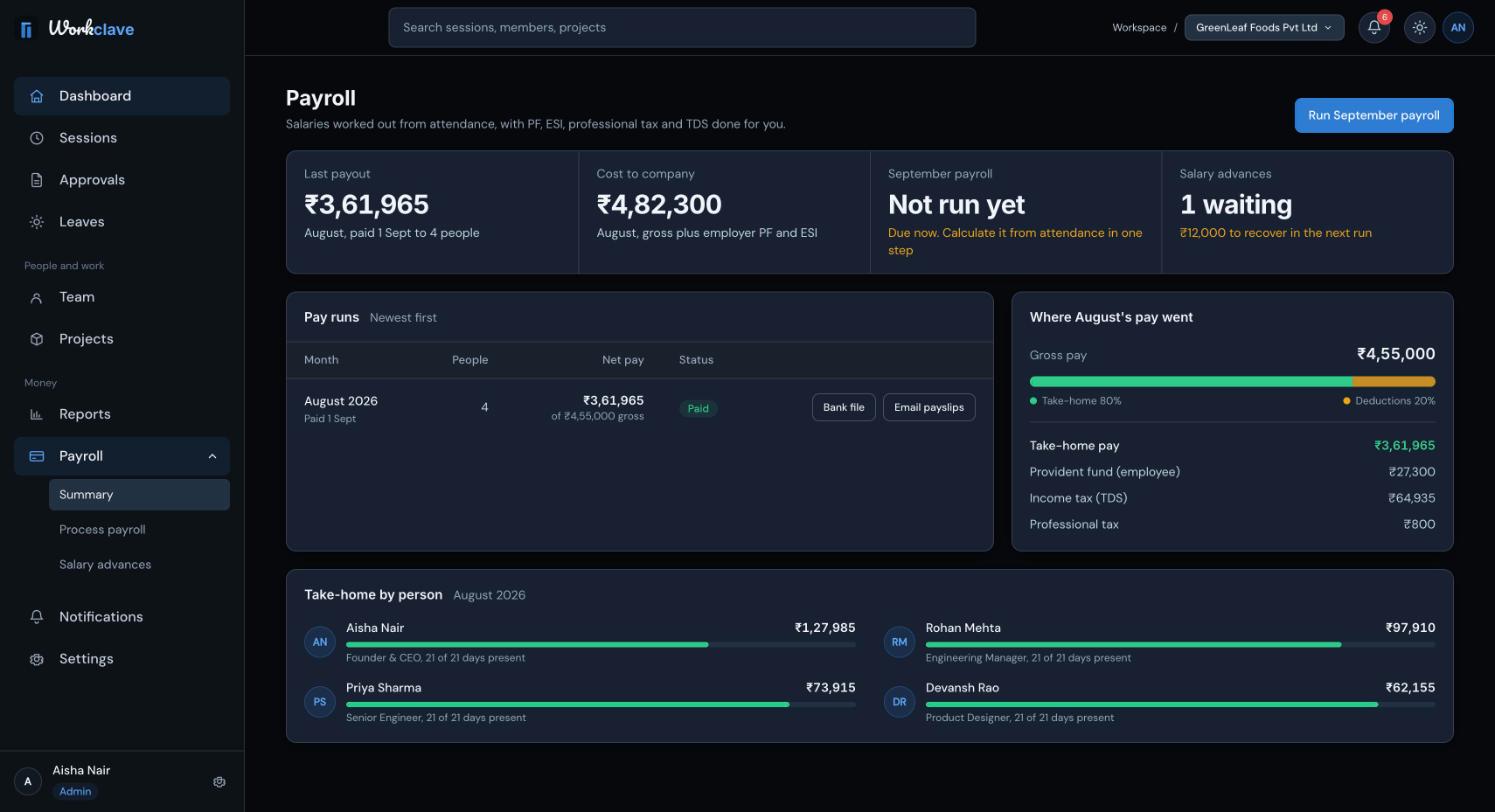
- Last payout: net pay of the last paid run.
- Cost to company: gross plus employer PF and ESI.
- (Month) payroll: the status of the month that is due.
- Salary advances: requests waiting and amounts to recover.
- Pay runs: each month with People, Net pay, Status, Bank file and Email payslips.
- Where pay went and Take-home by person: a breakdown of the latest run.
How attendance becomes pay
- Working days are Monday to Friday, minus holidays.
- A present day is a working day with at least one approved work session.
- A paid leave day is a working day inside approved leave.
- Loss-of-pay days are working days minus present days minus paid leave days.
Approve all sessions and leave for the month first. A day with only unapproved sessions counts as loss of pay. Work on Saturday or Sunday does not reduce loss of pay.
Step 1: Calculate
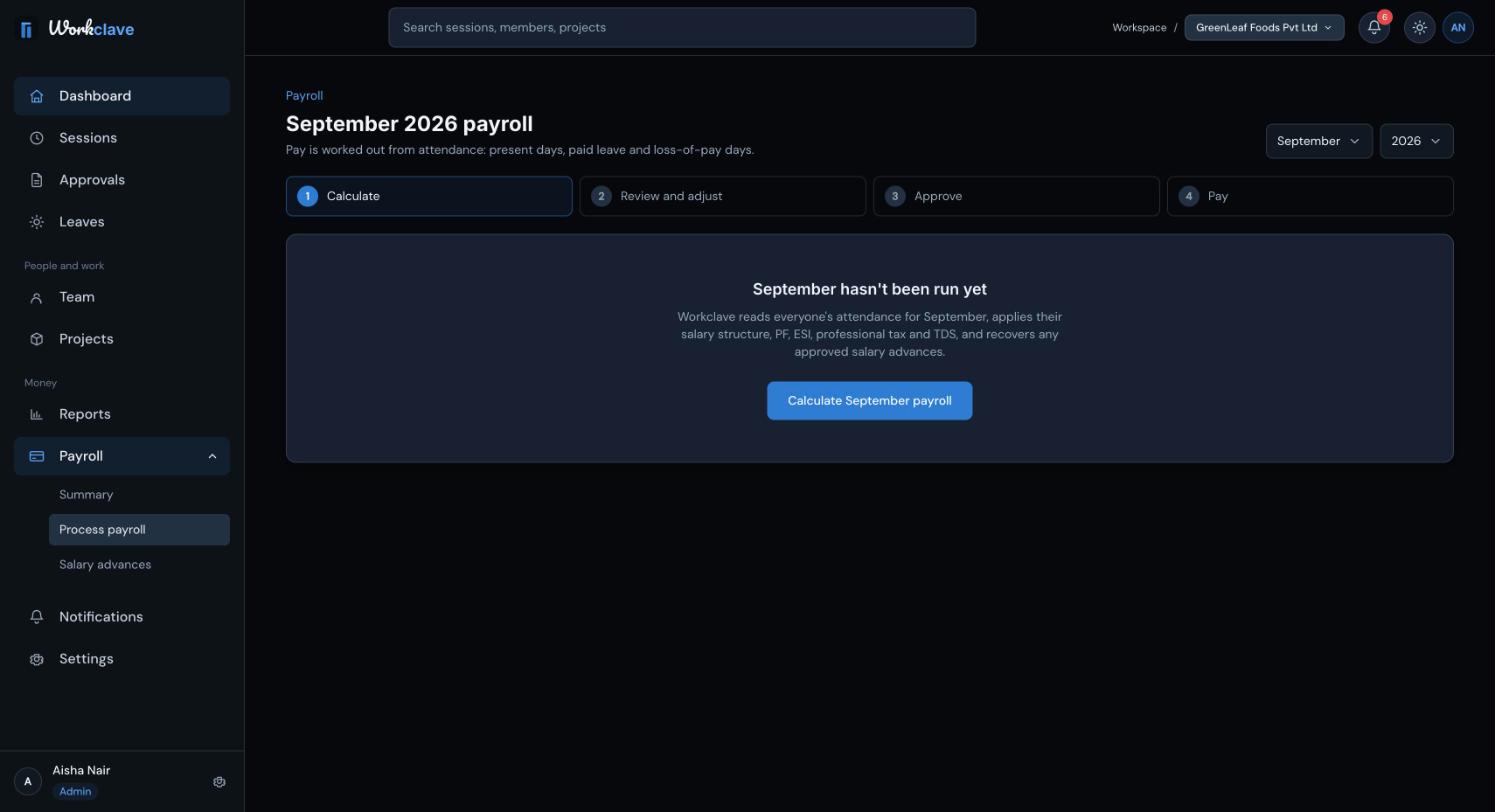
- Go to Payroll → Process payroll. Workclave opens the month that just ended.
- Check the Month and Year at the top. Change them if needed.
- Click Calculate (month) payroll, for example Calculate October payroll.
- If the month is not over, Workclave warns that working days after today count as loss of pay.
- If some people fail, you see “N people couldn't be processed” with their names.
- People whose structure is not for India are listed as outside India payroll. Export their session data from Reports.
Step 2: Review and adjust
The draft shows People, Gross pay, Deductions and Net pay. The Payslips table shows each person's Attendance, Gross, Deductions and Net pay. Click a name to see the full payslip.
- Click Adjust on a person's row.
- Enter a Bonus (added to gross), Other deductions (taken off net) or change the Salary advance recovery.
- Click Save adjustment.
- Click Recalculate after you approve more sessions or leave.
- Click Discard draft and then Yes, discard to throw the draft away.
- You cannot adjust your own payslip.
Step 3: Approve
- Click Approve payroll.
- Read the message: payslips lock and become available to download and email.
- Click Yes, approve.
The admin who calculated the run cannot approve it if another admin exists. Ask a second admin to approve. In a workspace with only one admin, that admin can approve, and Workclave records it in the audit log.
Step 4: Pay
- Click Download bank file. The file is named like
bank-transfer-2026-10.csv. - Upload or enter the payments in your bank's system.
- Click Email payslips to send each person their payslip.
- When the money has gone, click Mark as paid.
The bank file contains full account numbers. Store it safely and delete it after use.
- If email is not set up, you see “Email isn't set up for this workspace yet.”
- A paid month cannot be calculated again. Workclave shows “This month is already paid.”
Related articles
Create salary structures, give each person a salary and bank details, and learn how Workclave calculates pay for India.
Employees view and download payslips after payroll is approved. Admins download and email payslips from the payroll run.
Employees request a salary advance. Admins approve or decline it, and payroll recovers it in the next run.
Learn who reviews each session, how to approve or send back timesheets, and how to approve many at once.