Admin and settings
Workspace settings
Change the workspace name, logo, work week, business type and automatic lunch break, and see what each Settings tab does.
Open workspace settings
Go to Settings → Workspace. Only workspace admins see this tab. It has two tabs: General and Join Requests.
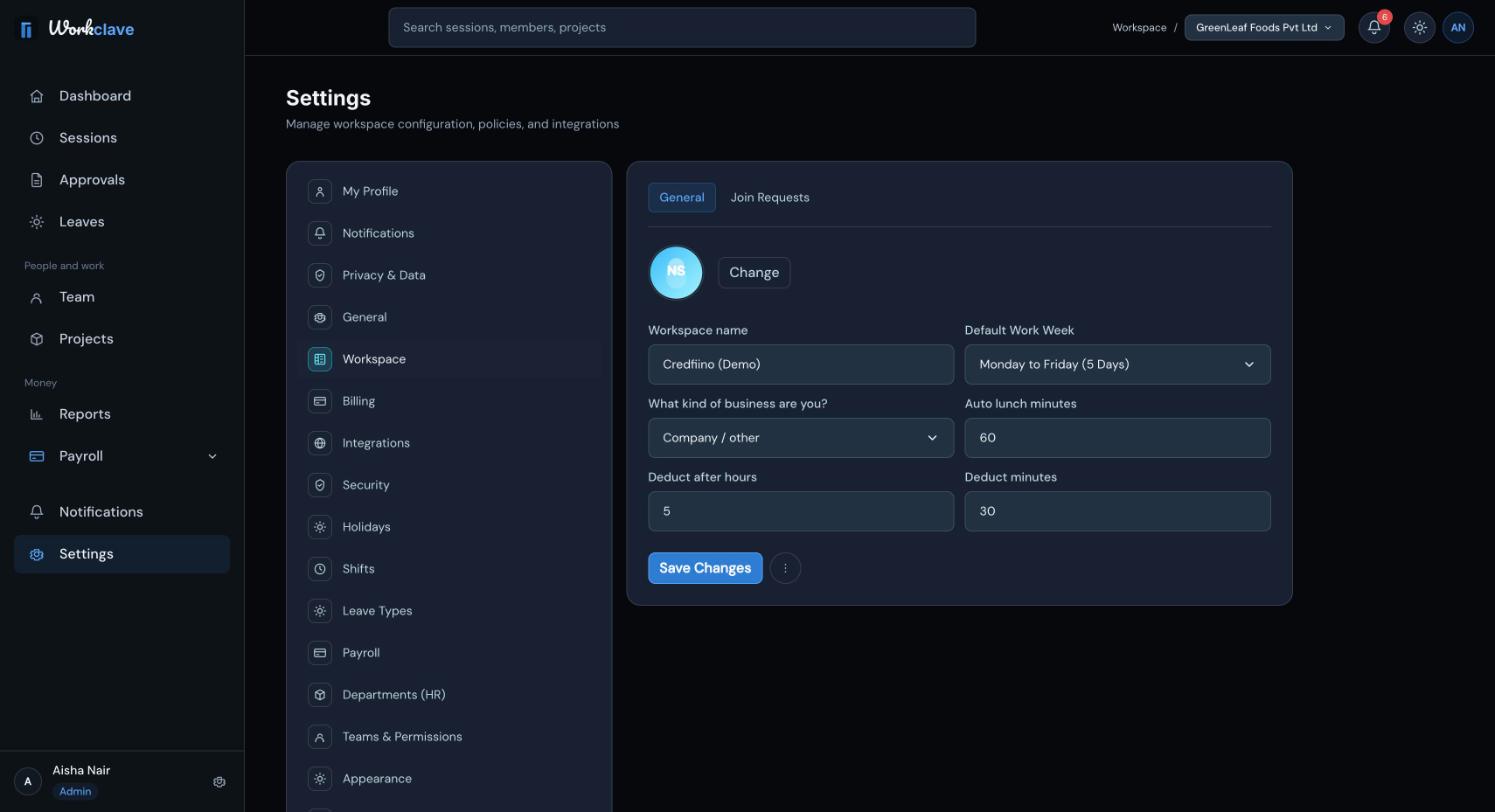
The settings on the General tab
- Logo: click Change and choose an image of 2 MB or less. Larger files are ignored.
- Workspace name.
- Default Work Week: Monday to Friday (5 Days), Monday to Saturday (6 Days) or Monday to Sunday (7 Days).
- What kind of business are you?: see Choose your business type.
- Auto lunch minutes, Deduct after hours and Deduct minutes.
Click Save Changes to save.
At present, the attendance register and payroll treat Saturday and Sunday as days off, whatever you choose in Default Work Week.
How the automatic lunch break works
- Auto lunch minutes is the length of the automatic lunch break.
- When a session stops and it lasted at least that many minutes, Workclave adds a lunch break of that length.
- If the field is empty or 0, Workclave uses 60 minutes.
- Deduct after hours and Deduct minutes are saved, but the automatic lunch break uses only Auto lunch minutes at present.
Example: with 30 minutes, a session from 09:30 to 18:30 gets a 30-minute lunch break in the middle.
All Settings tabs
| Tab | Who sees it | What it does |
|---|---|---|
| My Profile | Everyone | Your name, phone, timezone and job details. |
| Notifications | Everyone | Preview only. Preferences are not saved yet. |
| Privacy & Data | Everyone | Export or delete your data. |
| General | Admins | Replay the guided tour. |
| Workspace | Admins | The settings in this article, and join requests. |
| Holidays | Admins | The holiday calendar. |
| Shifts | Admins | Shift times and grace periods. |
| Leave Types | Admins | Leave types and annual quotas. |
| Payroll | Admins | Salary structures. |
| Departments (HR) | Admins and managers | Departments and their managers. |
| Teams & Permissions | Admins and managers | Create, rename and delete teams or clients. |
| Billing, Integrations, Security | Admins | Previews only. Changes are not saved yet. |
| Appearance, About | Everyone | Previews and version information. |
Close the workspace
The Delete workspace item in the Workspace settings menu is not active. A workspace admin can close everything from Settings → My Profile: click ... and then Request account closure.
Account closure deletes the workspace and all its data at once: people, sessions, projects, teams, leave, holidays and settings. It cannot be undone. Export what you need first.
Related articles
Pick Company, Accounting / CA firm or Agency so Workclave uses words that fit your work, such as Clients and Vendors.
People with your company email domain can ask to join your workspace. Admins approve or decline the requests.
Add national and company holidays so attendance and payroll treat them as days off.
Update your name, phone, timezone and job details, and learn which fields only admins can change.