Daily work
Approve sessions
Learn who reviews each session, how to approve or send back timesheets, and how to approve many at once.
Who reviews a session
When a session stops, Workclave picks one reviewer. It never picks the person who did the work. It checks in this order:
- A manager or admin of the team (client) that owns the session's project, if the person is also a member of that team.
- A manager or admin of any team the person belongs to.
- A workspace admin.
Workspace admins can approve any pending session in the workspace. Team managers see only the sessions routed to them.
Team membership matters here. Today, the person who creates a team is added to it automatically, and the web app has no screen to add other people to a team. So in most workspaces, sessions go to a workspace admin.
Use the Approvals page
- Click Approvals in the left menu.
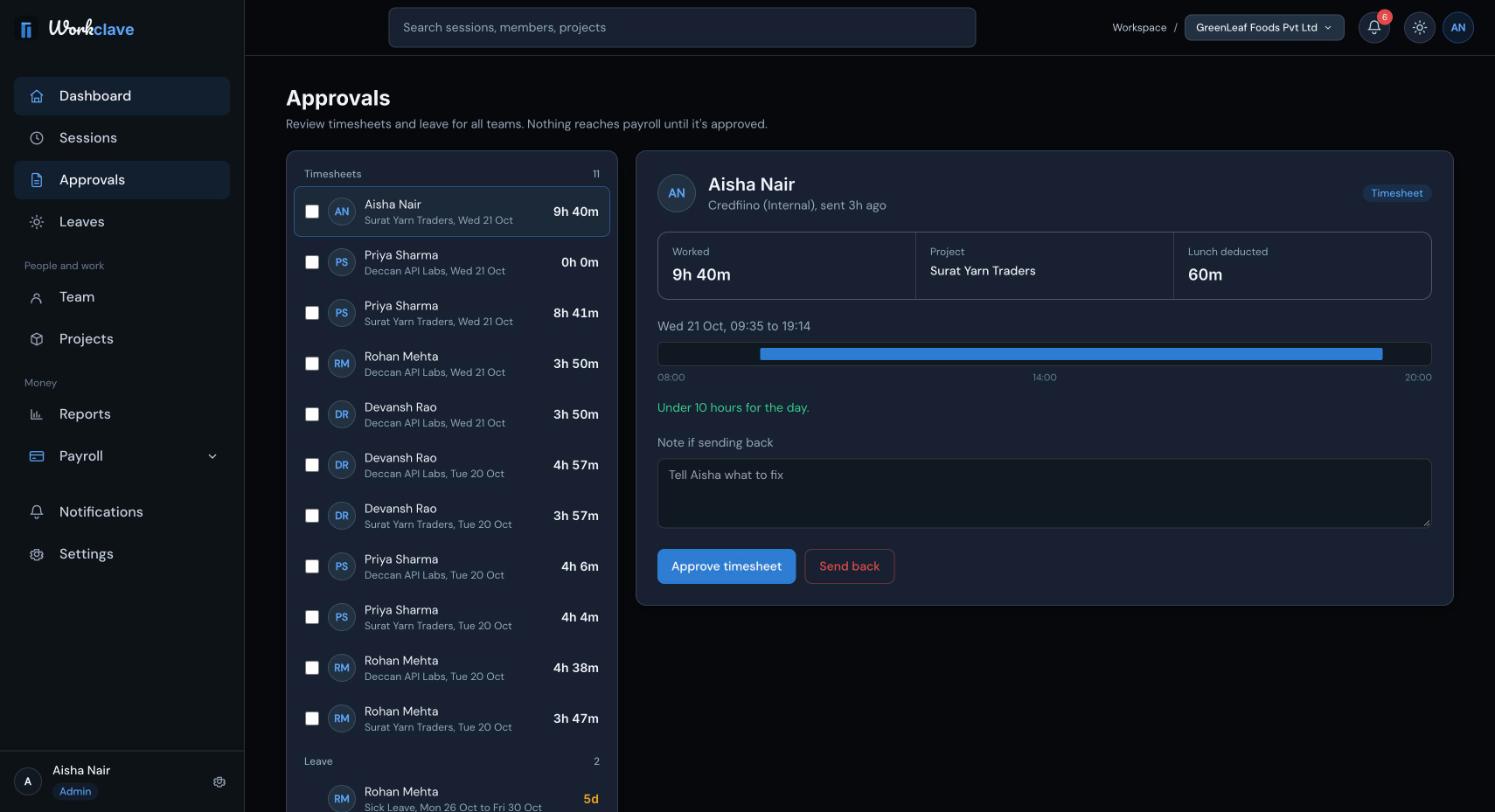
- The left side lists everything waiting for review, under Timesheets and Leave.
- Click a timesheet. The right side shows Worked, Project and Lunch deducted.
- Check the times. Workclave warns “Longer than 10 hours. Check the end time before approving.” for long sessions.
- Click Approve timesheet. You see “Timesheet approved”.
Send a session back
- Select the timesheet on the Approvals page.
- In Note if sending back, explain what to fix. Use at least 10 characters.
- Click Send back. You see “Timesheet sent back”.
The session becomes Rejected. The person gets a notification with your note. If the note is too short, Workclave asks you to write at least 10 characters.
Approve many sessions at once
- On the Approvals page, tick several timesheets and click Approve N selected, for example Approve 5 selected.
- On the Sessions page, tick rows and click Approve all in the bar at the bottom.
- On the dashboard, use the button at the bottom of Needs your decision.
Bulk approval skips your own sessions and any session you are not allowed to approve.
Other places to approve
- Sessions page: click ··· on a row and choose Approve or Reject.
- Notifications: a Session approval needed notification has an Approve button.
What approval changes
The person gets a Session approved notification. Approved sessions count as present days in payroll. A session waiting for approval still counts in reports, but not in payroll.
Clear the queue before month end. Sessions that are not approved when payroll runs become loss-of-pay days.
Related articles
Start and stop sessions, pick a project, understand automatic lunch breaks and use the Sessions page.
Find leave requests waiting for you, approve or decline them, and understand what approval changes.
Workclave has three roles: Workspace admin, Team manager and Member. See what each role can do and how roles change.
Calculate a month's payroll from attendance, review and adjust payslips, approve the run, pay through your bank and mark it paid.