People and projects
Leave types and balances
Create leave types with annual quotas. Workclave gives each person a yearly balance and updates it when leave is approved.
Create a leave type
- Go to Settings → Leave Types.
- Click Add Leave Type.
- Type the Leave Name, for example “Sick Leave (SL)”.
- Enter the Annual Quota (Days), for example 12.
- Enter the Max Carry Forward, or leave it at 0.
- Click Save Changes.
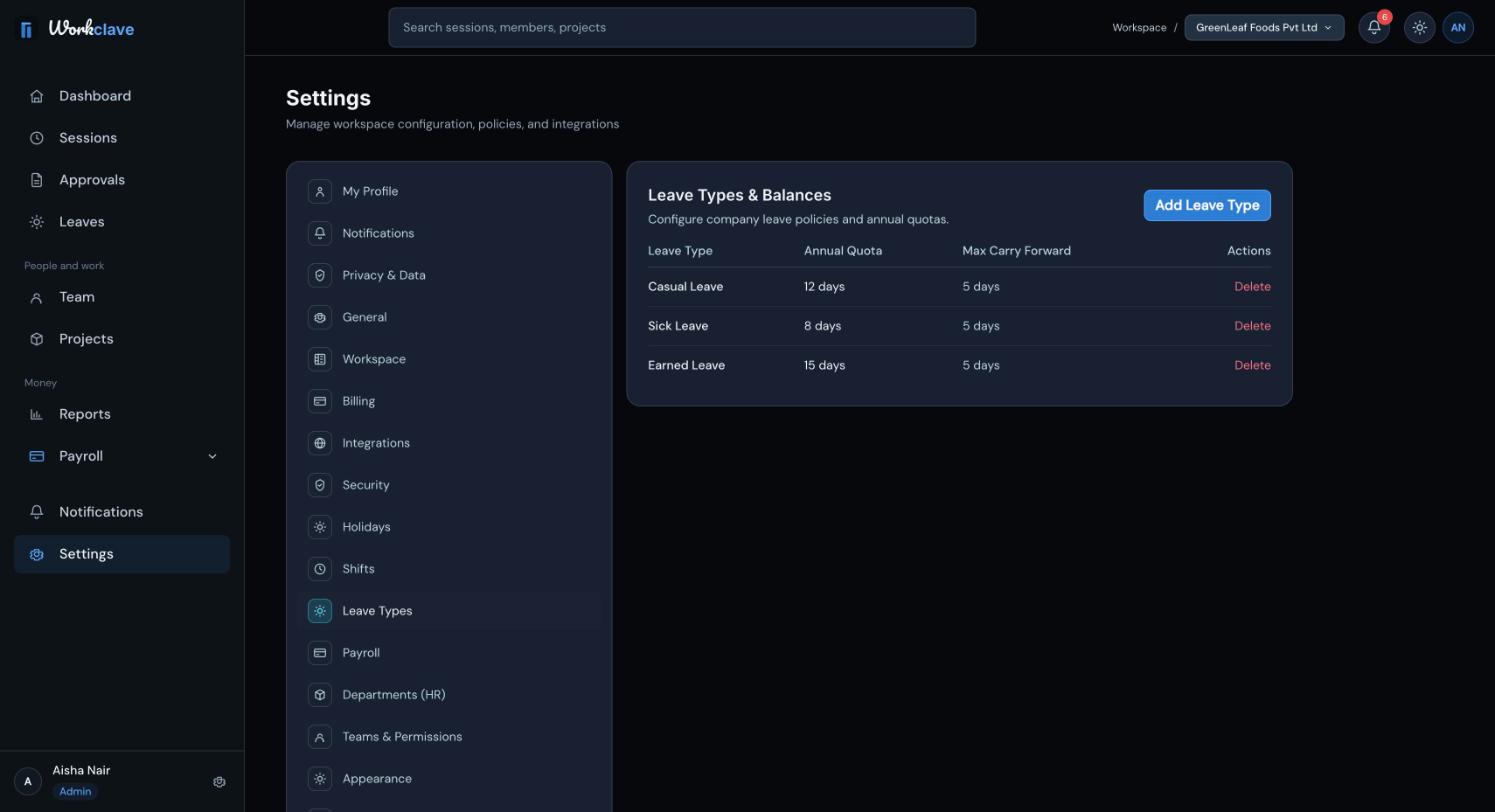
Only workspace admins can add or delete leave types.
Name leave types so balances show
Employees see a balance card only for leave types whose names include Casual, Sick, Earned, Maternity or Paternity. For example, use “Casual Leave (CL)”, “Sick Leave (SL)” and “Earned Leave (EL)”. Other leave types can still be requested.
How balances work
- Each person gets a balance for each leave type for each calendar year. It starts at the annual quota.
- When a request is approved, its calendar days are added to used.
- Remaining days are the quota minus the used days.
Max Carry Forward is saved, but unused days are not carried into the next year automatically yet. Each new year starts again at the annual quota.
Change or delete a leave type
There is no edit button yet. To remove a type, click Delete and confirm.
Delete only leave types that nobody has used. Requests for a deleted type no longer appear in leave history.
Related articles
Check your leave balances, submit a leave request and follow its status.
Find leave requests waiting for you, approve or decline them, and understand what approval changes.
Read the monthly attendance register, understand each code and export it as CSV or PDF.