Reports and payroll
Payroll setup
Create salary structures, give each person a salary and bank details, and learn how Workclave calculates pay for India.
Before you start
- Only workspace admins can see and use payroll.
- Payroll is built for India: PF, ESI, professional tax and TDS. Structures for the United States and Singapore are marked coming soon.
- Set up holidays and leave first. Payroll uses them to count working days and paid leave.
Create a salary structure
- Go to Settings → Payroll. The page is called Salary Structures.
- Click Create structure.
- Type a Structure name, for example “Staff grade A”.
- Enter Basic % of CTC and HRA % of Basic.
- Tick PF applicable and ESI applicable as needed.
- Keep Country as India.
- Check the Live preview (₹50,000 CTC), then click Create structure.
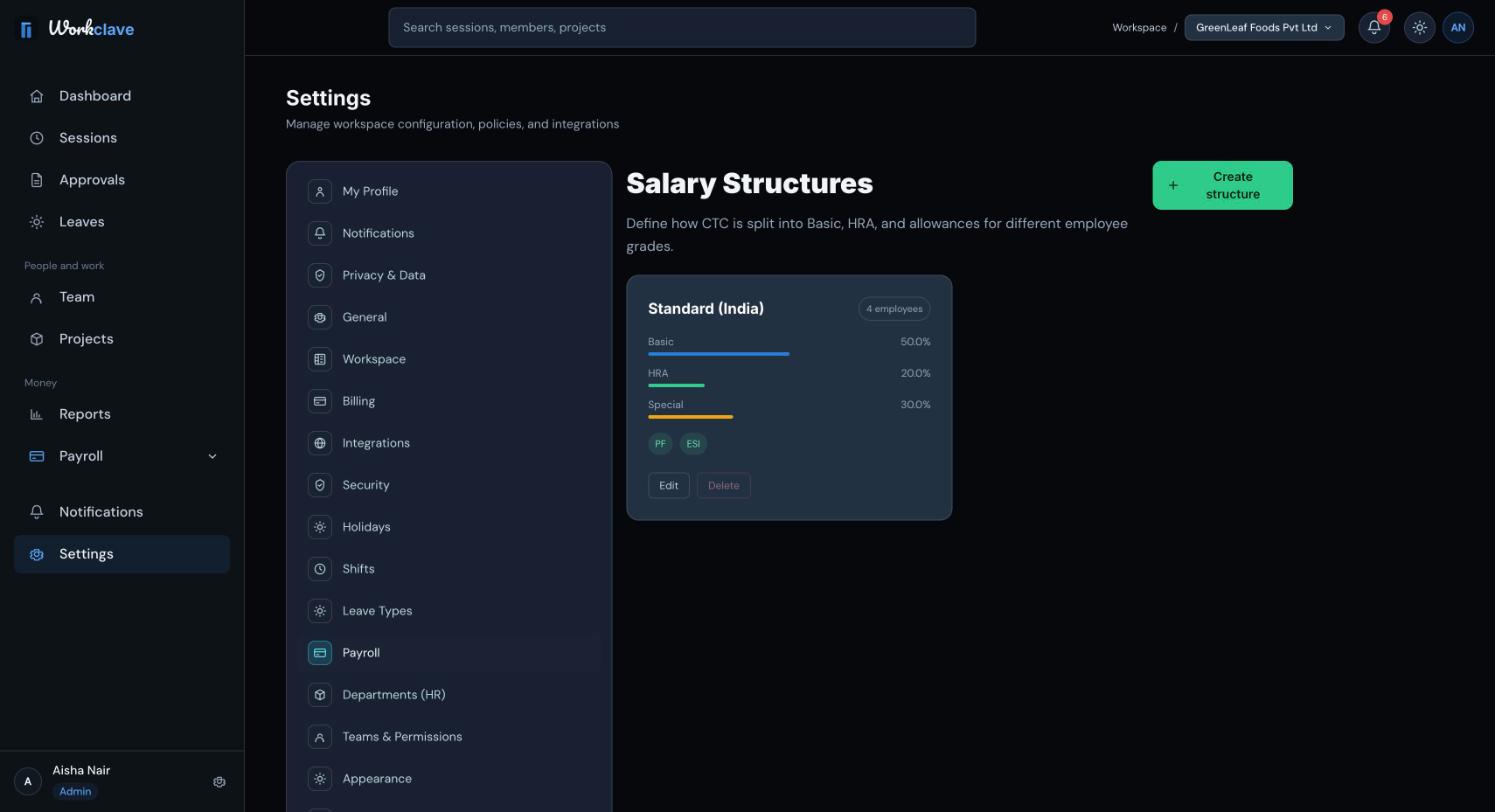
Example: Basic is 50% of CTC and HRA is 40% of Basic. For a monthly CTC of ₹50,000, Basic is ₹25,000, HRA is ₹10,000 and the Special allowance is ₹15,000.
You cannot delete a structure while people are assigned to it.
Give a person a salary
Each person has a Salary & Payroll page. It shows Current salary, the bank account, the salary history and tax declarations.
At present, the Salary & Payroll page is not linked from the Team page or the menus. Contact support to get the link for each person.
- Open the person's Salary & Payroll page.
- Click Edit (or Assign/Edit salary).
- Choose the Salary structure.
- Enter CTC Monthly and Effective from.
- Enter Bank account number, Bank IFSC and Bank name.
- Choose the Tax regime: New Regime or Old Regime.
- Choose the State for PT (professional tax).
- Click Save.
- The IFSC must look like 4 letters, then 0, then 6 digits, for example HDFC0001234. Otherwise you see “Invalid IFSC format”.
- An admin cannot set their own salary. Another admin must do it.
- A new salary with a later Effective from date applies from that date. The history table shows Effective From, Effective Until, CTC Monthly, Structure and Changed By.
How bank details are protected
Bank account numbers and IFSC codes are stored encrypted. Screens show only the last 4 characters. Full numbers appear only in the bank file you download after a payroll run is approved.
Who is included in a payroll run
A payroll run includes every person with a salary whose Effective from date is on or before the 1st of that month.
How pay is calculated
- Gross: monthly CTC split into Basic, HRA and Special allowance.
- Loss of pay (LOP): gross divided by working days, times LOP days.
- PF: 12% of Basic for the employee and 12% for the employer, scaled to the days paid, when PF applies.
- ESI: 0.75% employee and 3.25% employer, when ESI applies and gross after LOP is ₹21,000 or less.
- Professional tax: by the state's slab.
- TDS: an estimate from the yearly salary, the tax regime and the declarations.
- Salary advance: approved advances are recovered.
Check statutory amounts with your CA before you pay. TDS is an estimate. Workclave does not file returns.
Related articles
Calculate a month's payroll from attendance, review and adjust payslips, approve the run, pay through your bank and mark it paid.
Record each person's tax regime and investment declarations so Workclave can estimate monthly TDS.
Employees view and download payslips after payroll is approved. Admins download and email payslips from the payroll run.
Employees request a salary advance. Admins approve or decline it, and payroll recovers it in the next run.