Daily work
Notifications
Use the bell and the Notifications page to follow approvals, leave, join requests and payroll events.
The bell
The bell is in the top bar. A red number shows how many notifications you have not read. Click the bell to see the latest ones.
The Notifications page
Click Notifications in the left menu or in the profile menu.
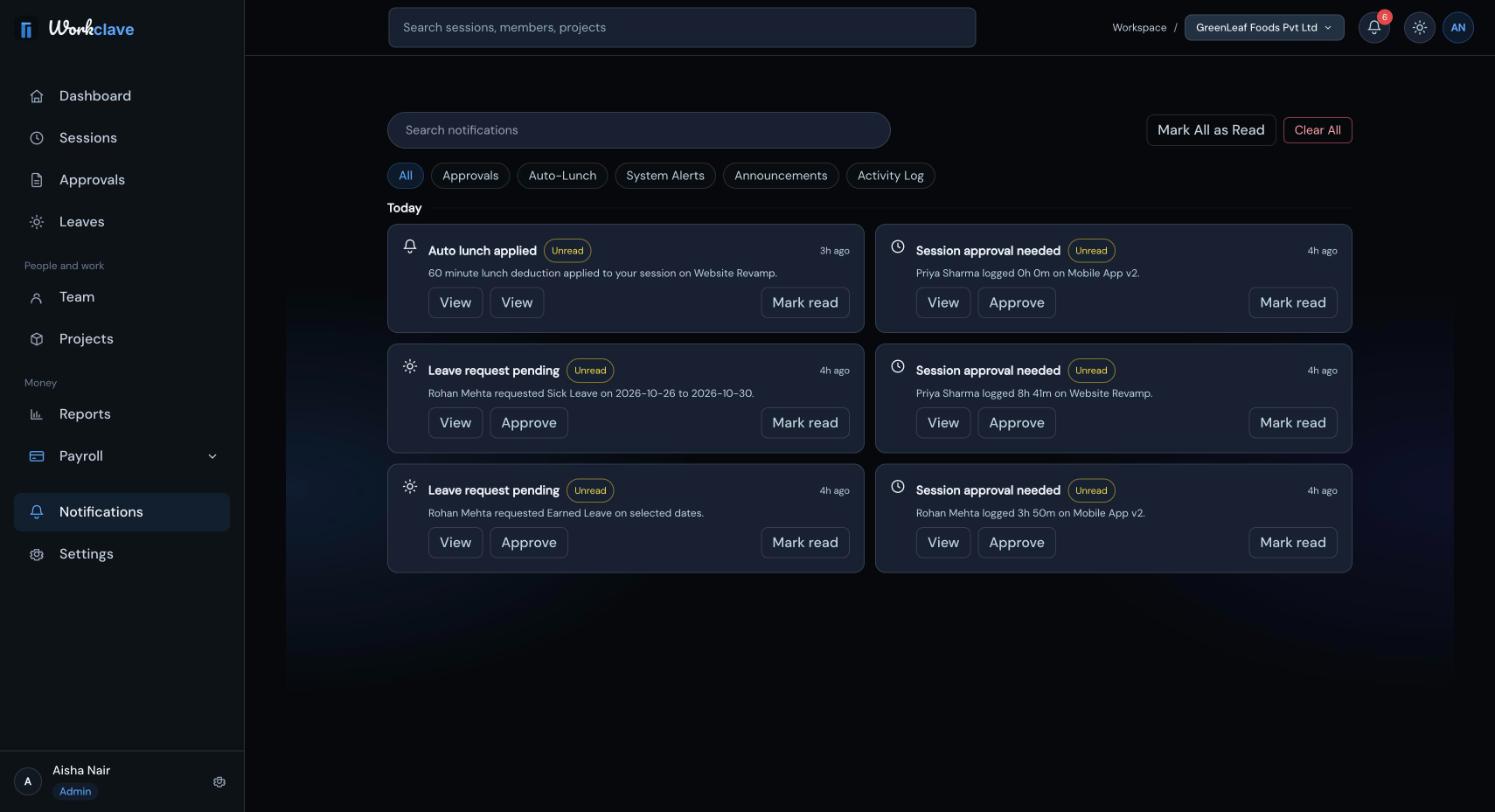
- Tabs: All, Approvals, Auto-Lunch, System Alerts, Announcements, Activity Log.
- Search notifications filters the list.
- Groups: Today, Yesterday, This Week, Older.
- View opens the details. Mark read marks one notification as read.
- Mark All as Read and Clear All act on the whole list.
Approve from a notification
Session approval needed and Leave request pending notifications have an Approve button. Clicking it approves the item at once.
Common notifications
| Notification | Who gets it |
|---|---|
| Session approval needed | Workspace admins and team managers, when a session stops. |
| Session approved / Session rejected | The person who did the work. |
| Session overdue approval | Reviewers, when a session has waited too long (about 20 hours, then 48 hours). |
| Auto lunch applied | The person whose session got an automatic lunch break. |
| Missed check-in | Reviewers, when a member has not started a session by 09:30. |
| Leave request pending | Workspace admins and team managers. |
| Leave approved / Leave rejected | The person who applied. |
| Join request received | Workspace admins. |
| Salary advance requested | Workspace admins. |
| Salary advance approved / rejected | The person who asked. |
Reminders such as Session overdue approval and Missed check-in depend on scheduled checks. Your workspace may not receive them.
Notification preferences
Settings → Notifications shows switches for alerts and channels. These preferences are not saved yet.
Related articles
Learn who reviews each session, how to approve or send back timesheets, and how to approve many at once.
Find leave requests waiting for you, approve or decline them, and understand what approval changes.
People with your company email domain can ask to join your workspace. Admins approve or decline the requests.