People and projects
Holidays
Add national and company holidays so attendance and payroll treat them as days off.
Why holidays matter
- The attendance register marks a holiday as H, not absent.
- Payroll does not count a holiday as a working day, so nobody loses pay for it.
Add a holiday
- Go to Settings → Holidays.
- Click Add Holiday.
- Type the Holiday Name, for example “Republic Day”.
- Pick the Date.
- Choose the Type: National Holiday or Custom / Org Holiday.
- Click Save Changes.
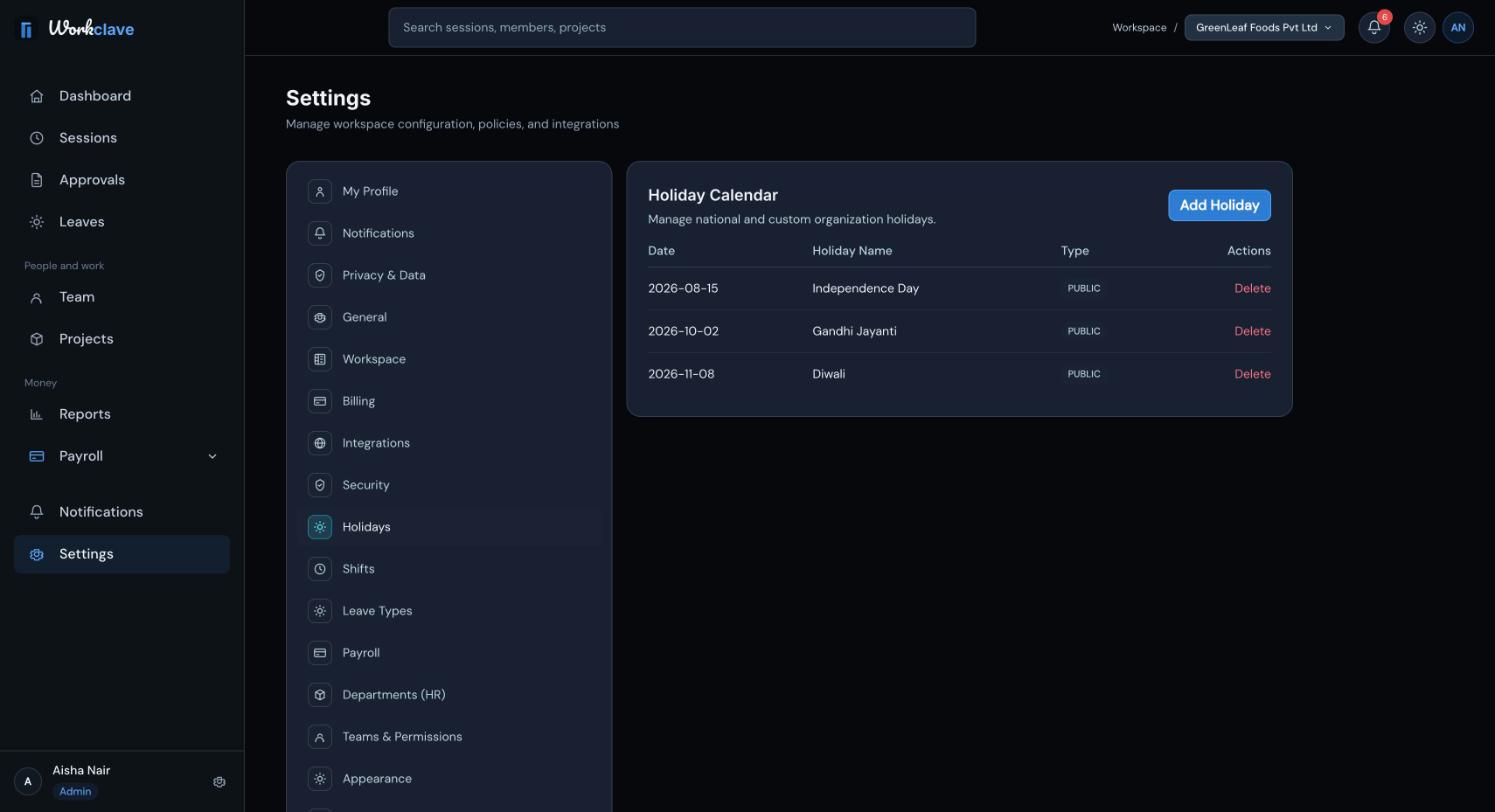
To remove a holiday, click Delete and confirm. Only workspace admins can add or delete holidays.
Example holidays for India
Many Indian workspaces add Republic Day (26 January), Independence Day (15 August) and Gandhi Jayanti (2 October). Add festival holidays such as Holi, Diwali, Eid or Pongal for their dates in each year.
Add the whole year's holidays in January. Holidays are stored by date, so add them again for each new year.
Weekends
The attendance register and payroll treat every Saturday and Sunday as a day off, whatever work week you choose. You do not need to add weekends as holidays.
Related articles
Define shifts with a start time and grace period so Workclave can mark late arrivals.
Read the monthly attendance register, understand each code and export it as CSV or PDF.
Calculate a month's payroll from attendance, review and adjust payslips, approve the run, pay through your bank and mark it paid.