Getting started
Create your account and sign in
Sign up with your email, verify your address, and sign in. Learn how work email and personal email accounts differ.
Before you start: which email to use
The email address you sign up with decides what kind of account you get.
| Email you use | What you get |
|---|---|
| A work email, such as name@yourfirm.in | A full team workspace. You can invite people, approve sessions and use reports and payroll. |
| A personal email, such as Gmail, Yahoo, Outlook, Hotmail, iCloud, Zoho or Rediffmail | Explorer mode. This is a personal sandbox for one person. You can upgrade later with a work email. |
If someone invited you, sign up with the exact email address the invite was sent to.
Sign up
- Open the Workclave sign-up page and find Create your account.
- Enter your Name, Email and Password. The password needs at least 8 characters.
- Read the terms. Tick I agree to the Terms of Service and Privacy Policy.
- Click Create account →.
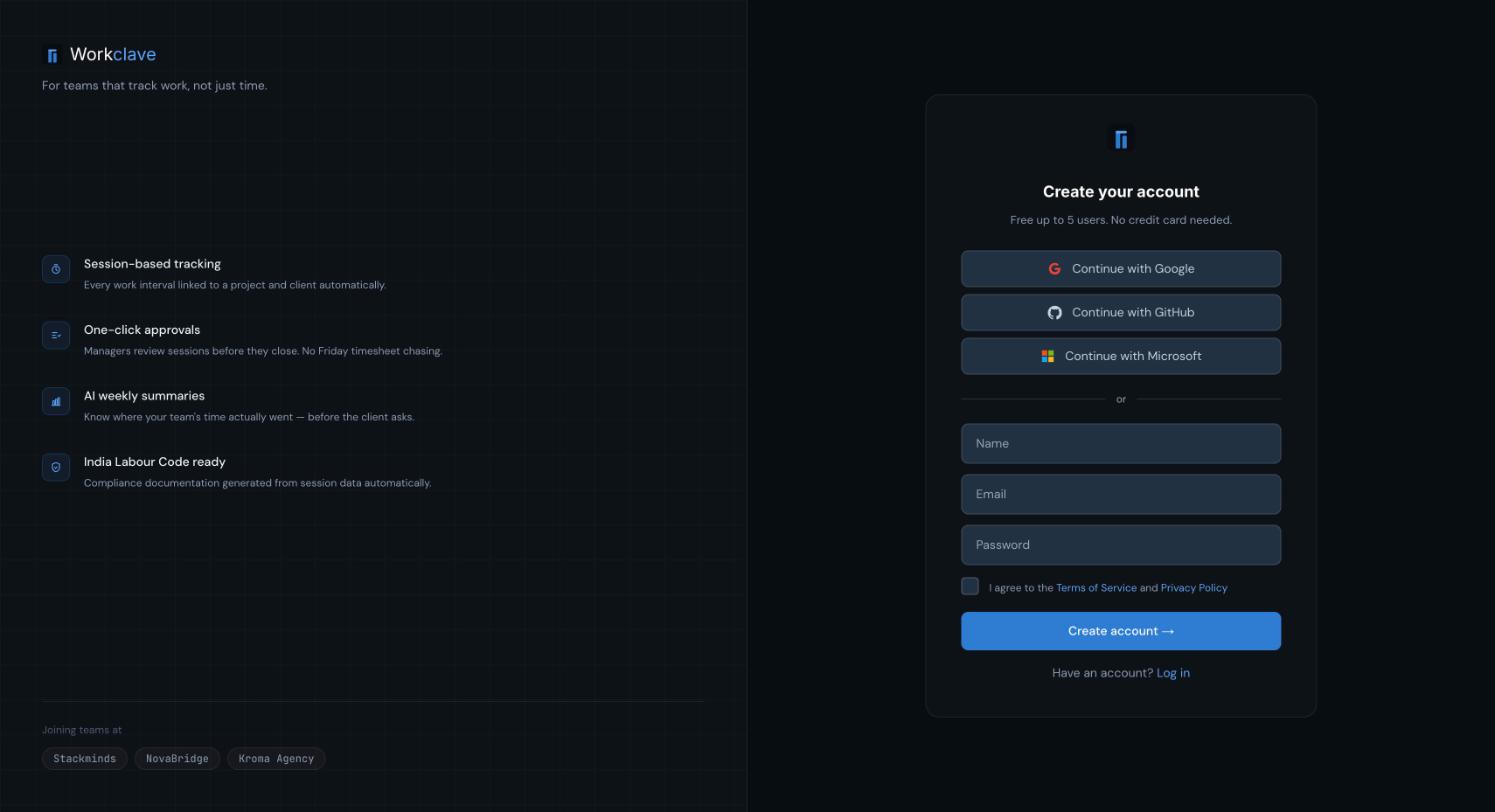
Under the email field, Workclave tells you which account type you will get. A work email shows “Company email — full workspace and team features included.” A personal email shows a note about Explorer mode.
If your company is already on Workclave
If a workspace already exists for your email domain, you see Your company is already on Workclave. You have two choices:
- Request to join workspace: the admin of that workspace gets your request. See Join requests.
- Create a new workspace: you start your own, separate workspace.
Verify your email
After sign-up, Workclave sends you an email with a Verify email link. The link works for 24 hours.
- Open the email from Workclave.
- Click Verify email.
- You see “Email verified. Any pending workspace invites have been applied.”
- Click Continue to dashboard.
If the link is old, you see “This verification link is invalid or has expired.” Click Send a new link and use the new email.
Workspace invites are applied only after you verify your email. If you were invited, verify first, before you do anything else.
Sign in
- Open the Workclave sign-in page. It says Welcome back.
- Enter your Email and Password.
- Click Log in →.
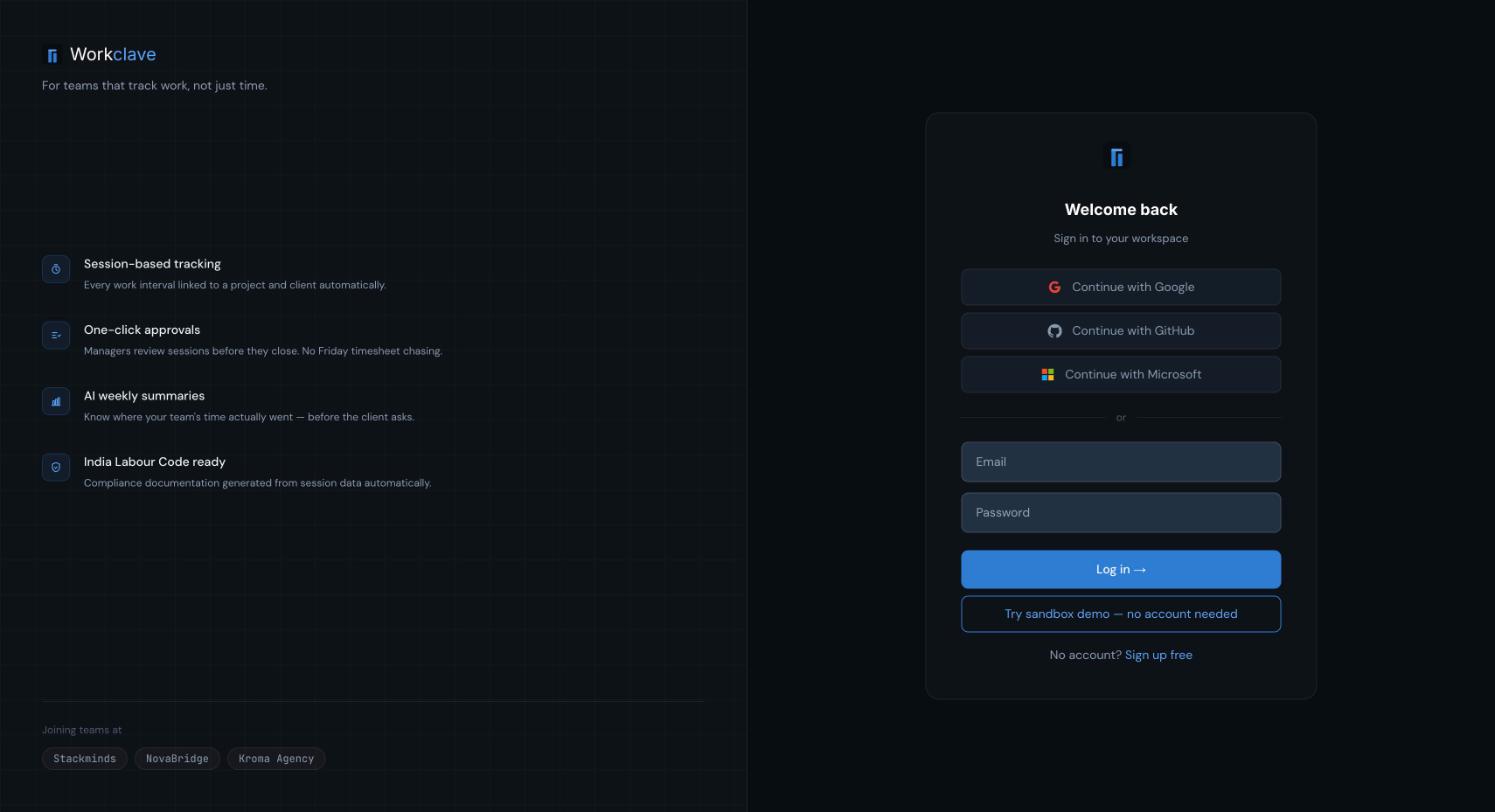
The Continue with Google, Continue with GitHub and Continue with Microsoft buttons are not set up yet. Use your email and password.
Want to look around first? Click Try sandbox demo — no account needed on the sign-in page.
What happens next
- Work email, new workspace: Workclave opens the setup steps. See Set up your workspace.
- Personal email: you go to the dashboard in Explorer mode. See Explorer mode.
- Invited by your company: verify your email, then go to the dashboard. See Invite your team.
Related articles
Walk through the six setup steps after sign-up, then finish the recommended setup tasks for your workspace.
Accounts made with Gmail and other personal addresses start in Explorer mode. Learn what it includes and how to create a team workspace.
Passwords, email verification, signing out, and the security protections built into Workclave.
People with your company email domain can ask to join your workspace. Admins approve or decline the requests.