Daily work
Apply for leave
Check your leave balances, submit a leave request and follow its status.
Check your balances
Click Leaves in the left menu. Members see My Leave Balances at once. Managers and admins click the My leaves tab first.
Each card shows the days left in large type and “X of Y days used” below it.
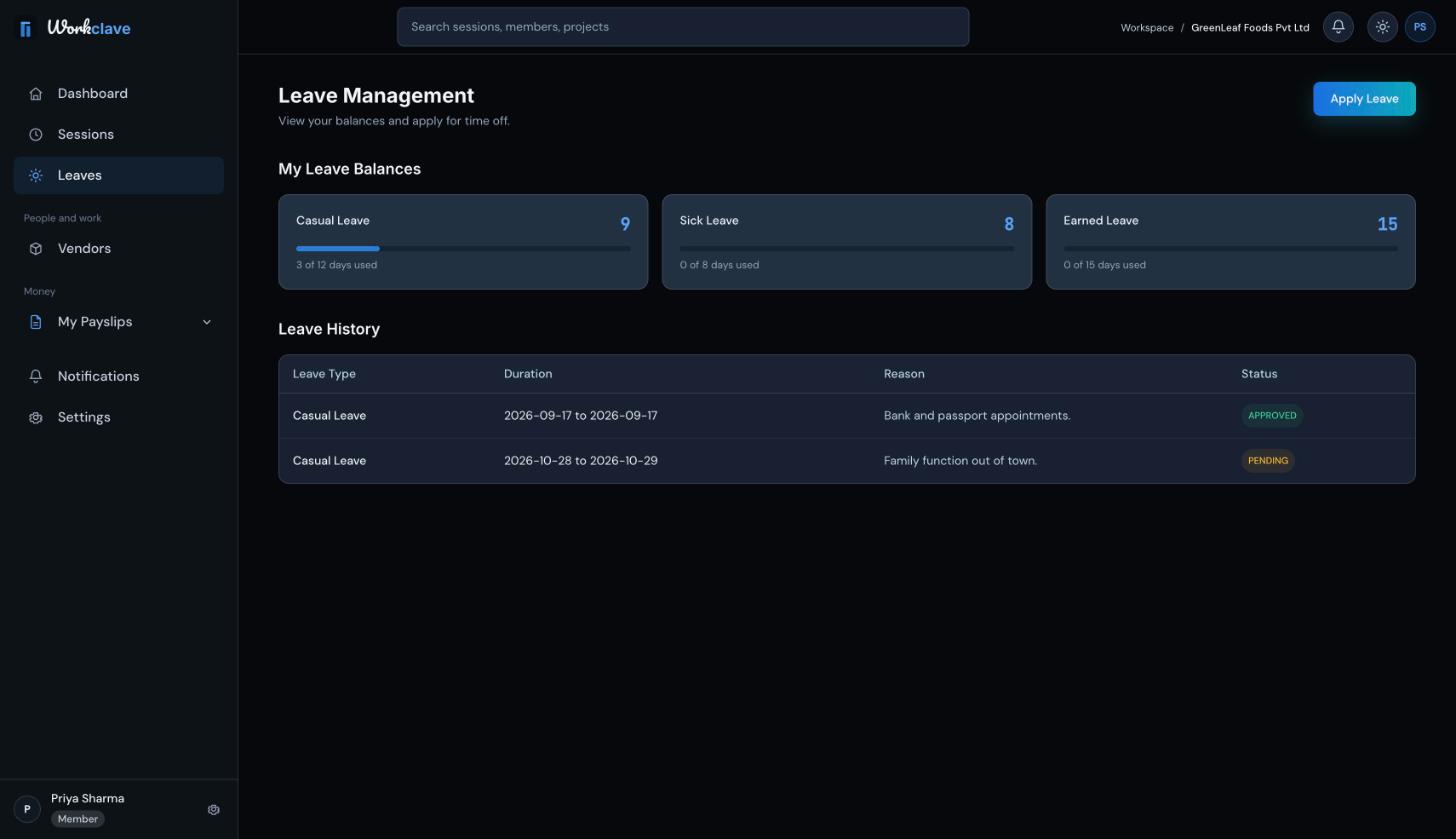
If you see “Leave balance not configured yet”, your admin has not set up leave types. Balance cards appear for leave types whose names include Casual, Sick, Earned, Maternity or Paternity.
Apply for leave
- On the Leaves page, click Apply Leave.
- Choose a Leave Type.
- Pick a Start Date and an End Date. The start date cannot be in the past.
- Type a Reason, for example “Family function in Pune”.
- Click Submit Request.
If the form shows “No leave types have been configured for your workspace.”, ask your admin to add leave types.
After you apply
- Your request appears in Leave History with the status PENDING.
- Workclave sends it to one reviewer, usually your manager or a workspace admin.
- You get a Leave approved or Leave rejected notification. The status changes to APPROVED or REJECTED.
How days are counted
When a request is approved, every calendar day from the start date to the end date is taken from your balance. This includes weekends inside the range. For example, Friday to Monday uses 4 days.
Payroll counts approved leave as paid leave only on working days (Monday to Friday, not holidays).
To avoid using balance on weekends, apply for separate ranges, for example Friday to Friday and Monday to Monday.
Change or cancel a request
There is no cancel button. Ask your reviewer to decline the request, then submit a new one.
Related articles
Find leave requests waiting for you, approve or decline them, and understand what approval changes.
Create leave types with annual quotas. Workclave gives each person a yearly balance and updates it when leave is approved.
Use the bell and the Notifications page to follow approvals, leave, join requests and payroll events.