People and projects
The Team page
See who is working right now, invite people, assign departments and promote HODs from one page.
Open the Team page
Click Team in the left menu. Workspace admins and team managers see this page. The top of the page says “Who is working right now, then invites, departments and HODs.”
The Right now table
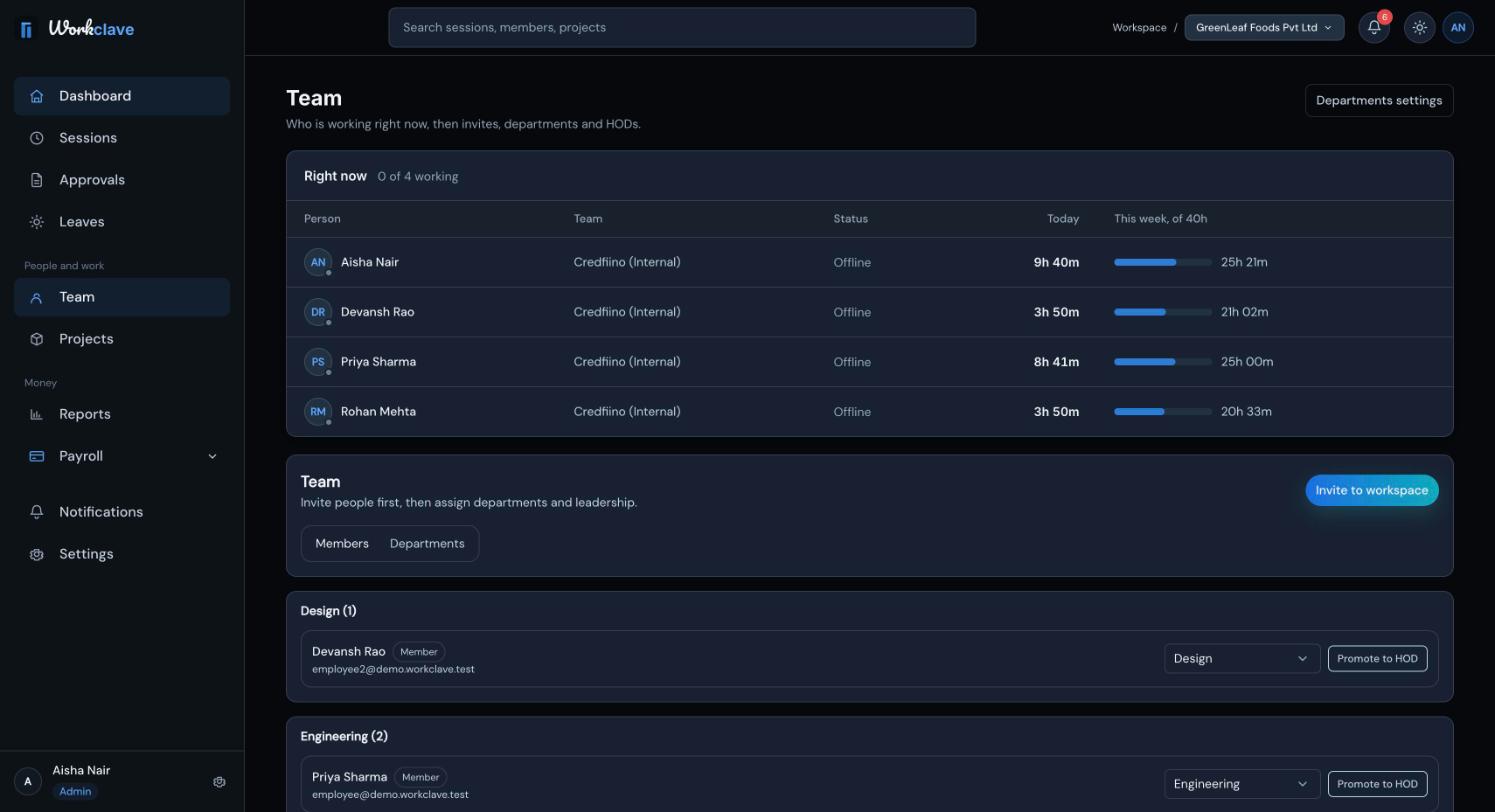
| Column | What it shows |
|---|---|
| Person | Name of the person. |
| Team | Their team, or “Not in a team”. |
| Status | Working, On break or Offline. |
| Today | Hours logged today. |
| This week, of 40h | Hours this week against 40 hours. |
Team managers see their own team. Admins see everyone.
The Members tab
- A warning such as “⚠ 3 members not assigned to a department” lists people without a department. Use Assign to department next to each name.
- People are grouped by department. Each person shows their role and an HOD badge if they lead the department.
- Change department moves a person to another department.
- Promote to HOD (admins only) makes the person head of their department.
- Pending invites lists invites that have not been used yet.
The Departments tab
Only workspace admins can open this tab. It lists each department with its description, member count, sessions this week and HOD. Click Create department to add one. See Departments and HODs.
What you cannot do here yet
The web app does not yet have a button to remove a person from the workspace or to change another person's role to Workspace admin.
Related articles
Send workspace invites, help invited people join the right workspace, and track pending invites.
Create departments, place each person in one department and choose a Head of Department (HOD).
Workclave has three roles: Workspace admin, Team manager and Member. See what each role can do and how roles change.