People and projects
Projects (vendors and engagements)
Add projects, link them to a team or client, assign members, change status and read project details.
What projects are for
A project tells Workclave what a session was spent on. Reports use projects for the timesheet by project. CA firms see projects as Vendors. Agencies see them as Engagements.
Add a project
- Click Projects in the left menu.
- Click Add Project.
- Type the Project Name.
- Choose a Team if the project belongs to one. If your workspace has no teams, you see a Client text box instead.
- Optional: search and pick people in Assign members and Assign managers.
- Click Create.
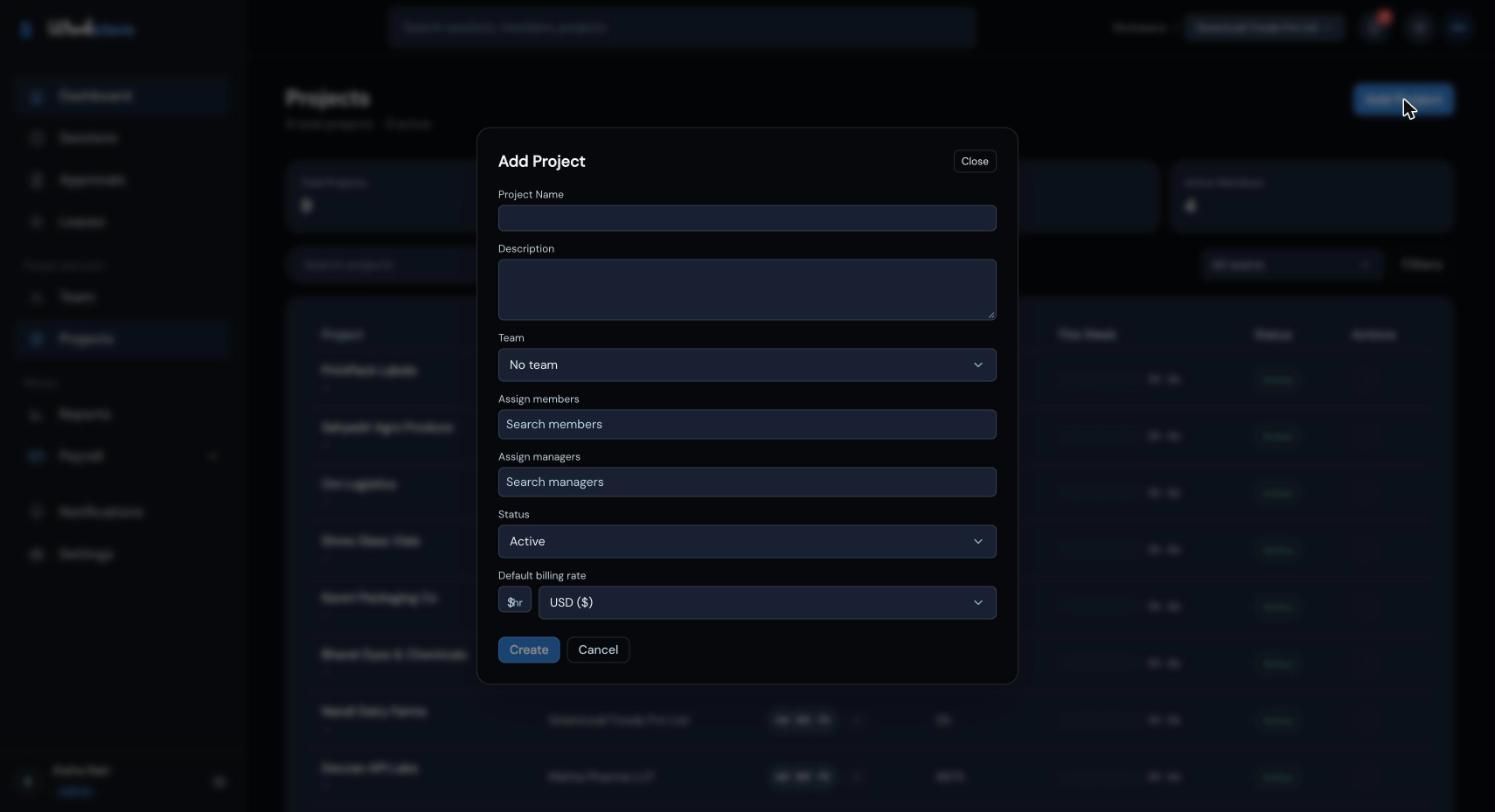
If you choose a team and pick nobody, Workclave adds the team's members to the project. If you pick people, your choice is used instead.
Some fields in this form are not saved yet: Description, Status and Default billing rate. A new project always starts as Active. Use Change Status after you create it. People in Assign managers are added as project members with no extra rights.
The Projects list
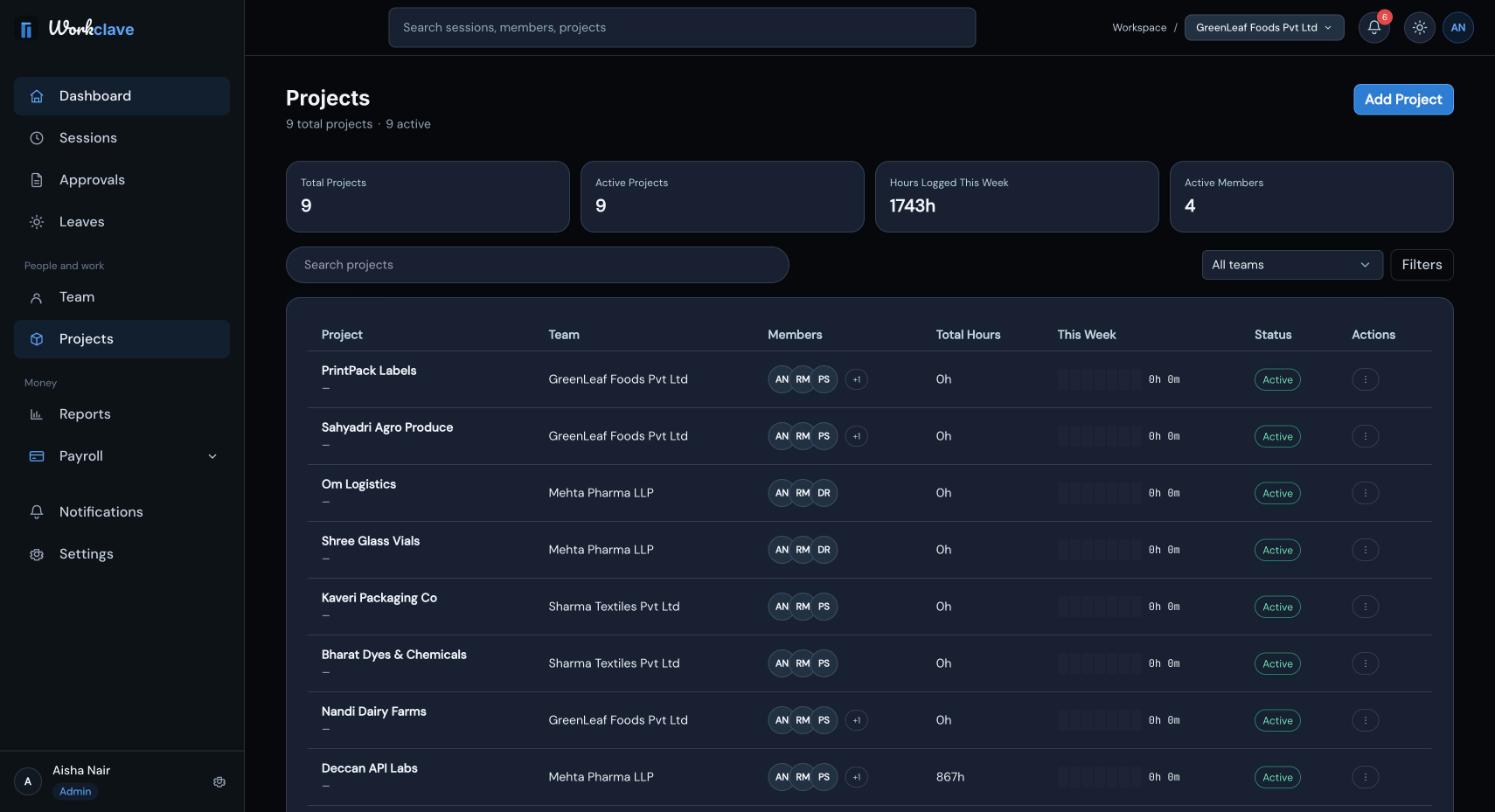
- Columns: Project, Team, Members, Total Hours, This Week, Status and Actions.
- Use Search projects and the team filter.
- Filters opens more options: Status, Member Assigned, Team, Time Spent (weekly hours) and Activity Level. Click Apply or Reset.
Manage a project
Click ⋮ in the Actions column. Admins and managers see these options:
- View Details: open the details panel.
- Assign Members: choose the people in Select members and click Save.
- Change Status: pick Active, On-Hold or Completed in New status and click Save.
- Remove Project: delete the project after you confirm.
Removing a project cannot be undone. Its sessions stay, but they no longer show the project name.
Project details
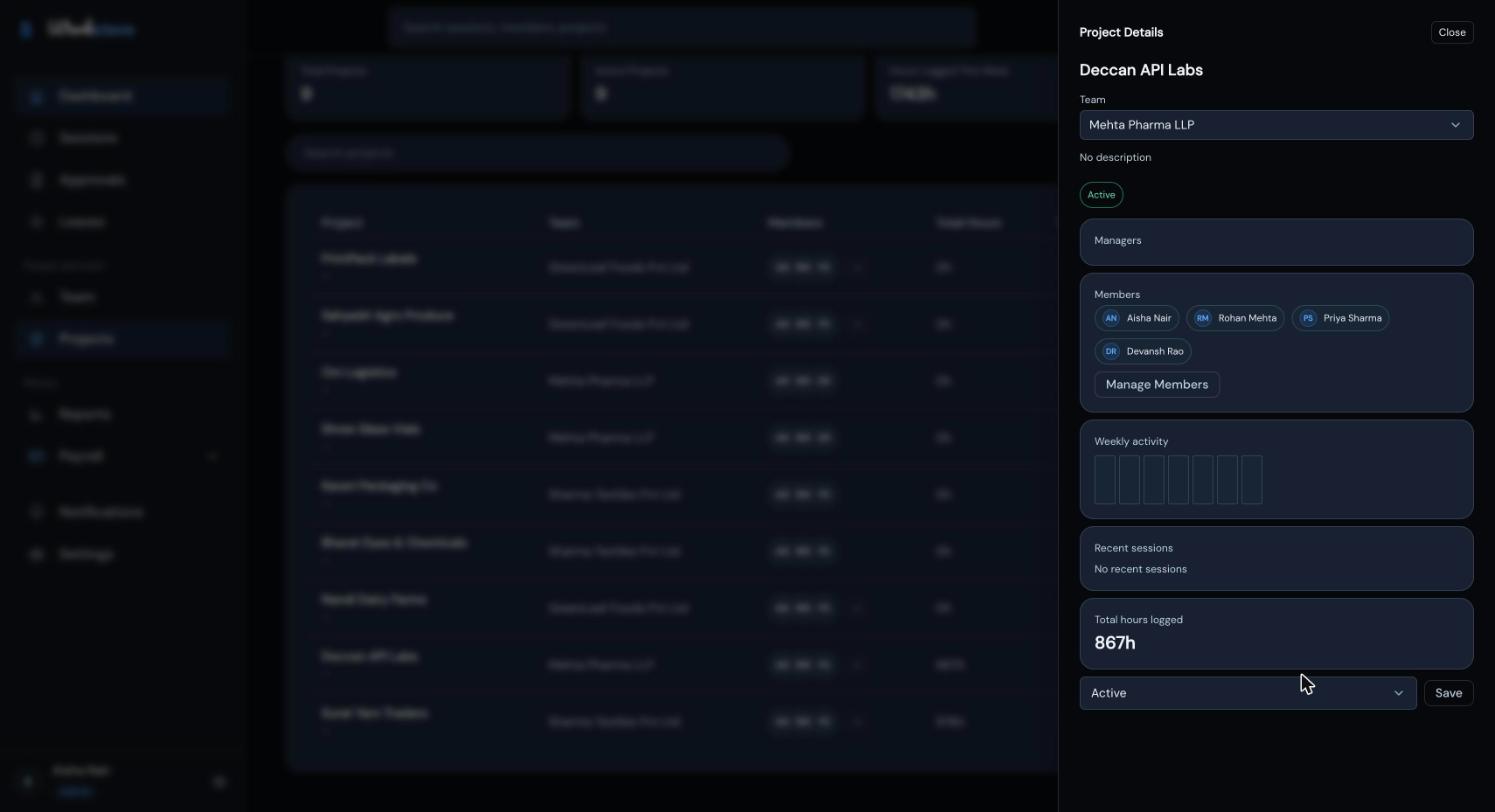
Click a project row to open its details. You see the name, the Team (admins and managers can change it here), the status, Managers, Members with Manage Members, Weekly activity, Recent sessions and Total hours logged.
What members see
On the Projects page, members see projects they are assigned to and projects with no members. The list next to Start session shows every project in the workspace.
Related articles
Create, rename and delete teams. CA firms and agencies use teams as clients and attach projects to them.
Start and stop sessions, pick a project, understand automatic lunch breaks and use the Sessions page.
Use the timesheet by project to see approved and pending hours per person and project, filter by client, and download a CSV for billing.
A complete setup for a CA firm: clients, each client's vendors, staff, time logged per vendor, approval and a monthly timesheet CSV per client for billing.