Admin and settings
Your profile
Update your name, phone, timezone and job details, and learn which fields only admins can change.
Open your profile
Click Settings in the left menu. Workclave opens My Profile. You can also click your initials in the top bar and then Settings.
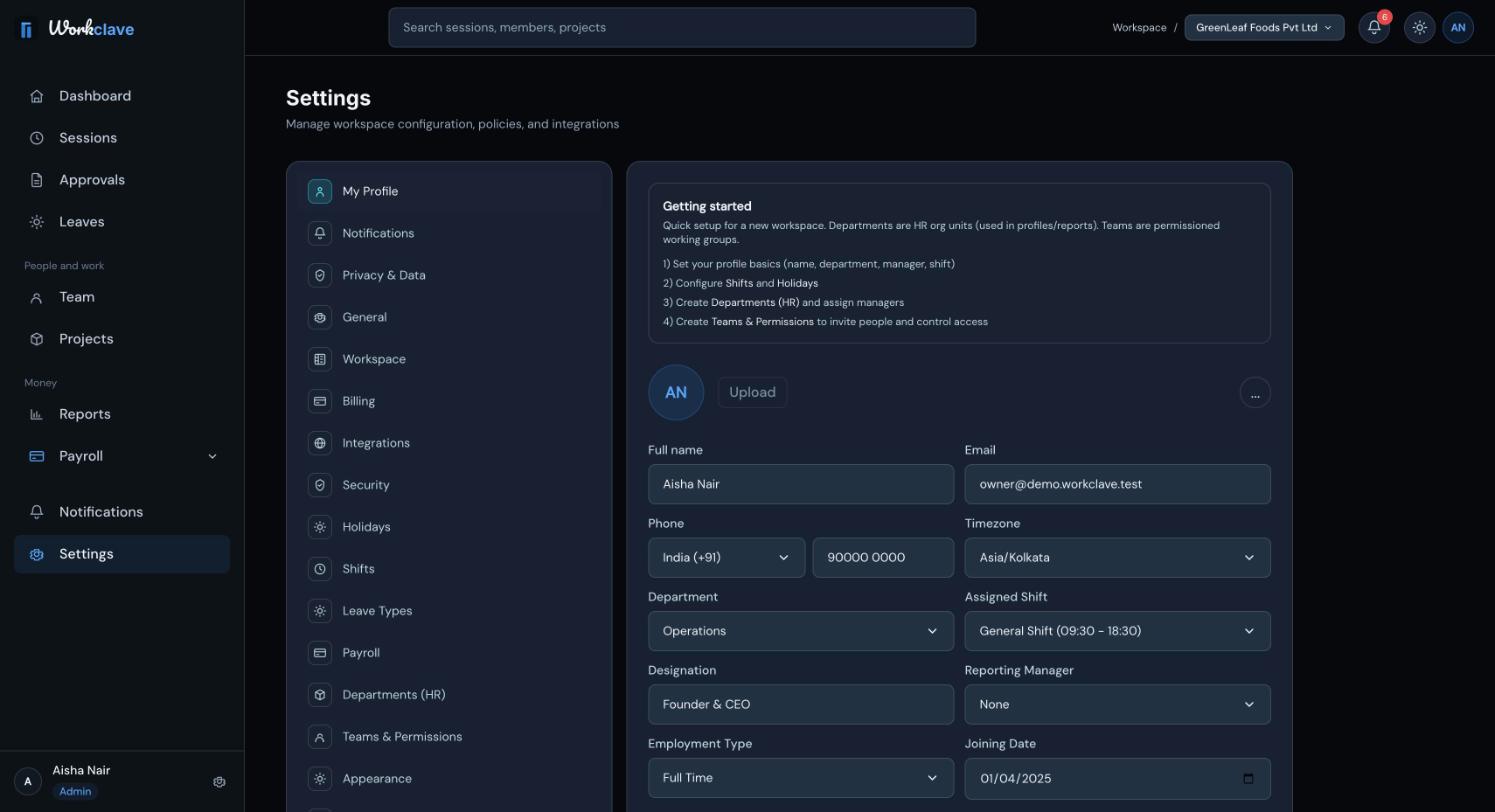
Profile fields
| Field | Notes |
|---|---|
| Full name | Shown across Workclave. |
| Read only. | |
| Phone | Choose the country code, for example India (+91), then type the number. |
| Timezone | Asia/Kolkata, America/New_York or Europe/London. |
| Department | Only admins can change it. |
| Assigned Shift | Only admins can change it. Default Workspace Time means no shift. |
| Designation | Your job title. It appears on payslips. |
| Reporting Manager | The person you report to. Managers see their reports in Reports. |
| Employment Type | Full Time, Part Time, Contractor or Intern. |
| Joining Date | Your first working day. |
| Role | Only admins can change it. |
Click Save Changes. If you change a field that only admins can change, you see “Could not save profile changes right now.”
Profile photo
Workclave shows your initials. Uploading a photo is not available yet.
Light and dark theme
Use the sun or moon button in the top bar to switch the theme. The Appearance tab in Settings is a preview and does not save changes.
Related articles
Manage marketing emails, download a copy of your data and delete your account.
Passwords, email verification, signing out, and the security protections built into Workclave.
Define shifts with a start time and grace period so Workclave can mark late arrivals.