Reports and payroll
Salary advances
Employees request a salary advance. Admins approve or decline it, and payroll recovers it in the next run.
Request an advance
- Go to My Payslips → Request advance.
- Enter the Amount.
- Type a Reason.
- Click Submit request.
- You can have one request waiting at a time.
- Your salary must be set up first.
- Your requests and their status appear under Your requests.
Approve or decline (admins)
- Go to Payroll → Salary advances.
- Use the filters: Waiting, To recover, Recovered, Declined or All.
- Optional: type a Note to them.
- Click Approve or Decline.
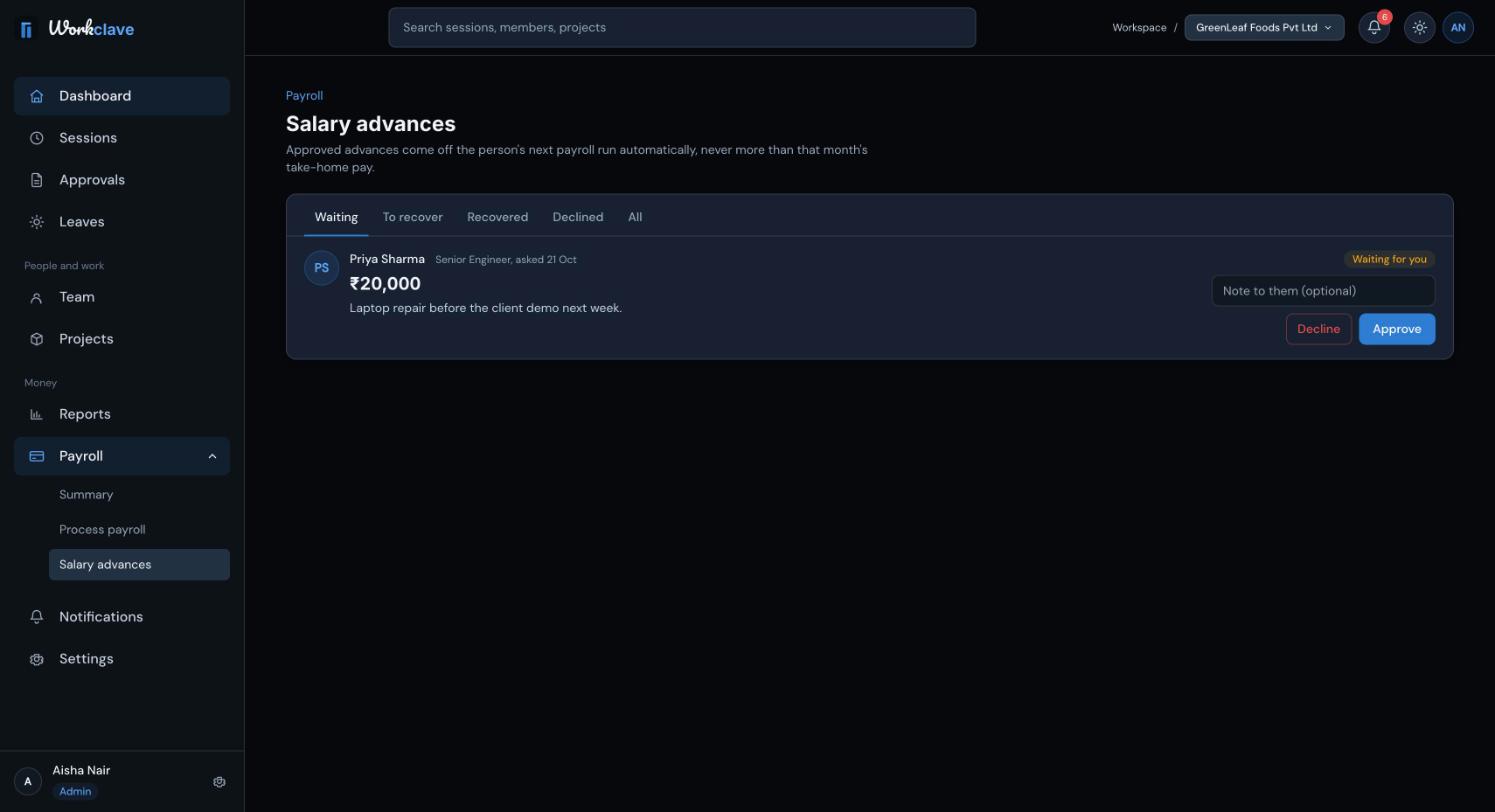
You cannot decide your own request.
How an advance is recovered
- An approved advance shows Approved, recovers next run.
- The next payroll run takes it from net pay. It appears in Adjust as Salary advance recovery, already filled in.
- Recovery is capped so that net pay does not go below zero. Any remainder is recovered in the following run.
- After recovery, the status becomes Recovered.
Related articles
Run payroll
Calculate a month's payroll from attendance, review and adjust payslips, approve the run, pay through your bank and mark it paid.
Payslips
Employees view and download payslips after payroll is approved. Admins download and email payslips from the payroll run.
Notifications
Use the bell and the Notifications page to follow approvals, leave, join requests and payroll events.