Daily work
Your dashboard
The dashboard shows who is working, what waits for your decision and how many hours were logged. Members see their own day.
The top of the dashboard
The dashboard greets you and shows today's date. On the right you find the project list and the Start session button. Next to them are the range buttons: Today, This week, This month and Custom.
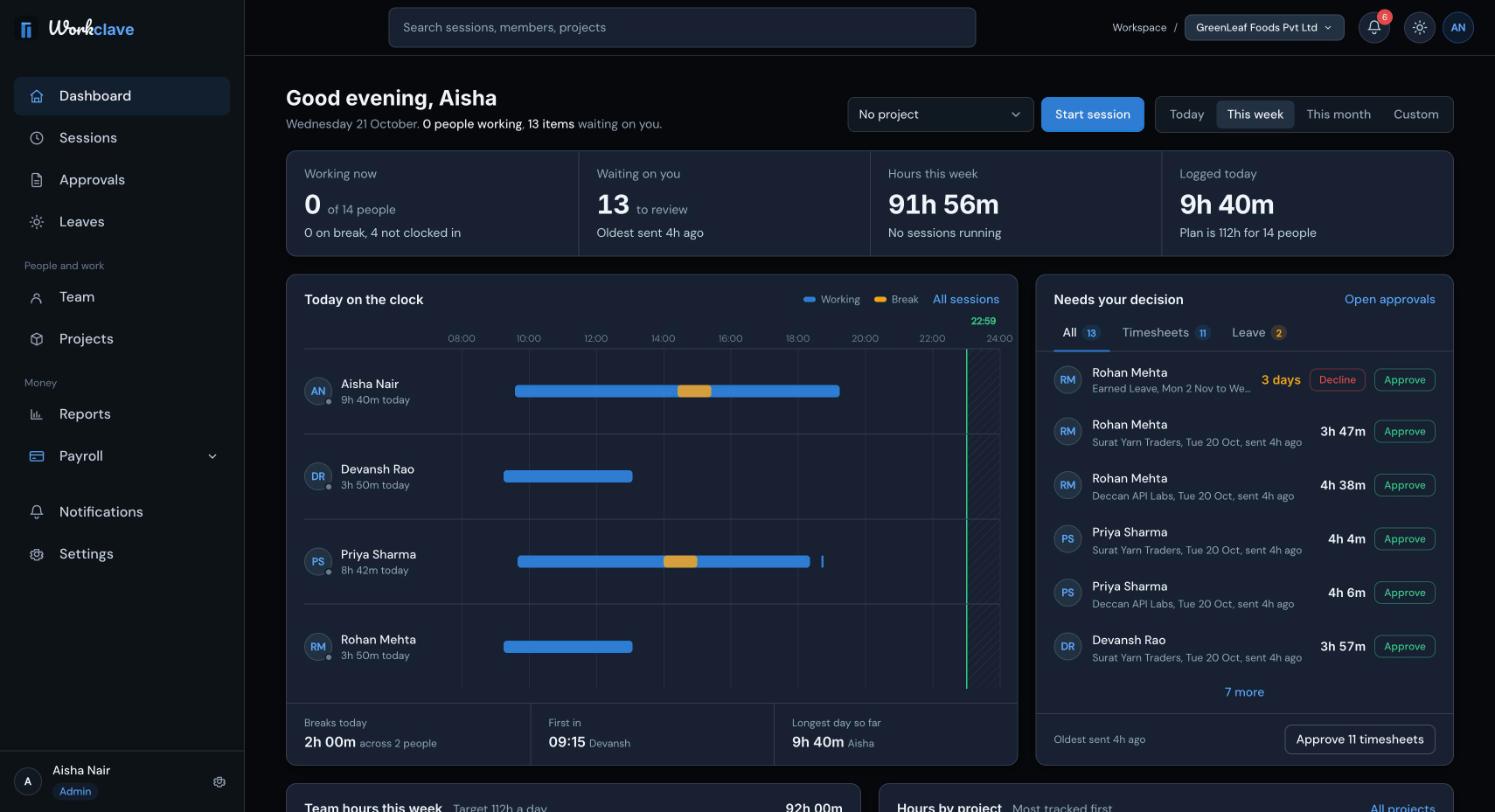
What admins and managers see
| Area | What it shows |
|---|---|
| Working now | How many people have a running session, how many are on break and how many have not clocked in. |
| Waiting on you | How many timesheets and leave requests wait for your review, and how old the oldest one is. |
| Hours | Hours logged in the range you picked, and how many sessions are running now. |
| Logged today | Hours logged today, against a plan of 8 hours per person. |
| Today on the clock | A timeline of each person's work and breaks today. Click All sessions to open the Sessions page. |
| Needs your decision | Timesheets and leave requests you can approve here. Tabs: All, Timesheets, Leave. |
| Team hours this week | Hours per day for the current week. |
| Hours by project | The projects with the most tracked time. |
In Needs your decision, click Approve or Decline on a row. The button at the bottom approves every timesheet in the list, for example Approve 11 timesheets. Click Open approvals for the full approvals page.
What members see
- Cards for Hours Today, Active Sessions, Pending Approvals and Auto Lunch Applied.
- Your day: a timeline of your sessions today.
- Your recent sessions with their times and durations.
- Your hours this week and Hours by project.
Switch between teams (admins)
At the top right, next to your workspace name, admins see a team picker. Choose one team to filter the dashboard, or choose all teams. Team managers see their own team name here.
The top bar
- Search sessions, members, projects: type a word, then pick where to search.
- The bell: your notifications. See Notifications.
- The sun or moon button: switch between light and dark themes.
- Your initials: open the profile menu with My Sessions, Notifications, Settings and Logout.
Setup checklist and guided tour
Admins and managers see a Setup checklist with the main setup tasks in order. You can dismiss it and click Open again later. Admins can replay the first-time tour from Settings → General → Replay tour.
Related articles
Start and stop sessions, pick a project, understand automatic lunch breaks and use the Sessions page.
Learn who reviews each session, how to approve or send back timesheets, and how to approve many at once.
Use the bell and the Notifications page to follow approvals, leave, join requests and payroll events.
See who is working right now, invite people, assign departments and promote HODs from one page.