People and projects
Shifts and late marks
Define shifts with a start time and grace period so Workclave can mark late arrivals.
What shifts do
A shift has a start time, an end time, a break length and a grace period. Workclave uses the start time and the grace period to decide if a session started late.
Create a shift
- Go to Settings → Shifts.
- Click Add Shift.
- Type the Shift Name, for example “Morning 9:30-6:30”.
- Set the Start Time and End Time.
- Enter the Break Duration (mins) and the Late Grace Period (mins).
- Click Save Changes.
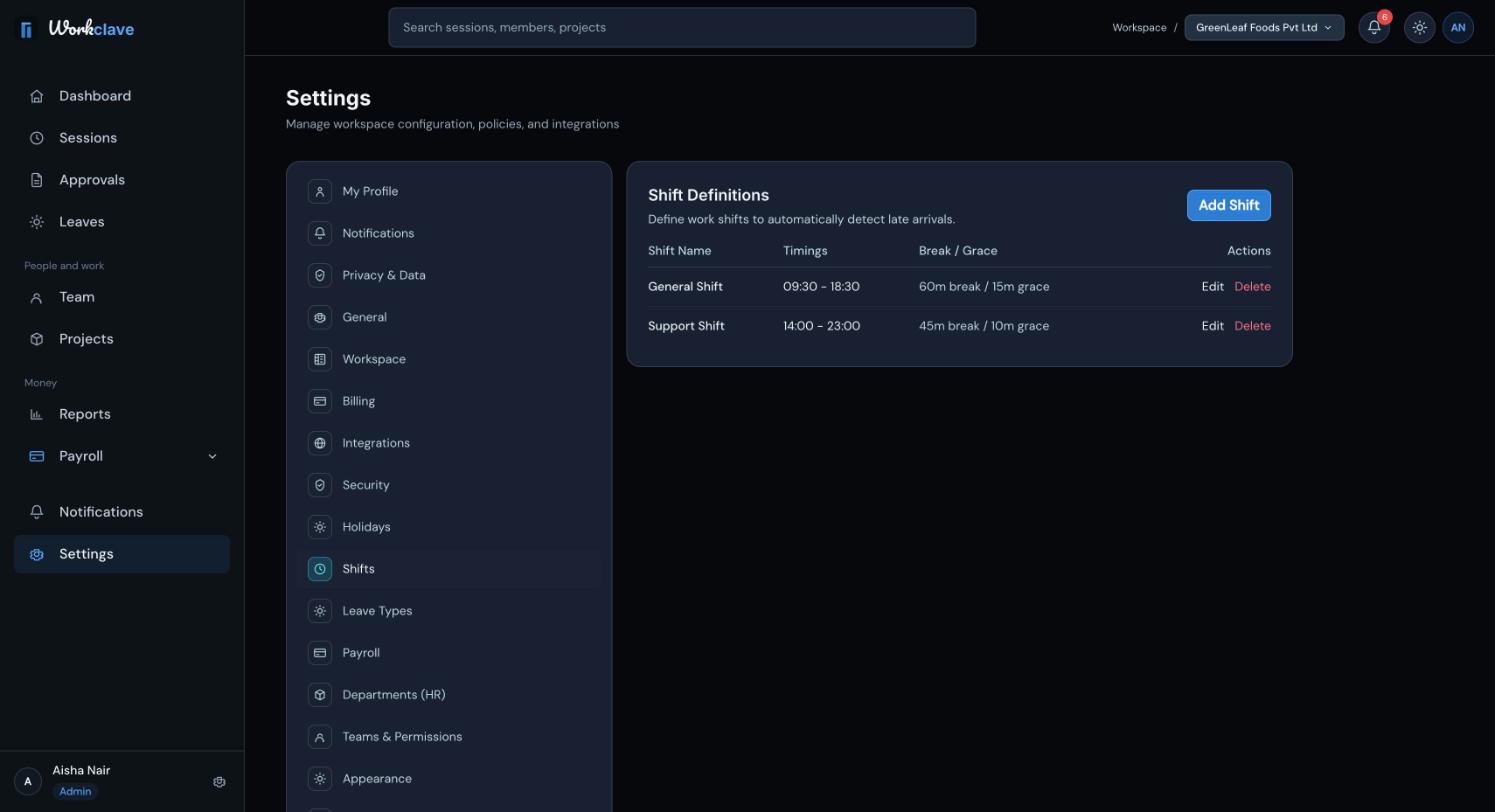
Use Edit to change a shift and Delete to remove it. Only workspace admins can manage shifts.
How a late mark is decided
A session is late if it starts after the shift start time plus the grace minutes. Example: the shift starts at 09:30 and the grace is 15 minutes. A session that starts at 09:45 is on time. A session that starts at 09:46 is late.
- The attendance register shows LT for a late day. A late day still counts as present.
- The Reports page shows Late check-ins for the month.
The break duration is stored with the shift. It is not taken off sessions. Automatic lunch breaks come from the workspace settings.
Assign a shift
A shift is set in Settings → My Profile → Assigned Shift. Default Workspace Time means no shift, so no late marks.
Only workspace admins can change the Assigned Shift field, and the profile page edits your own profile. The web app does not yet let an admin set the shift on another person's profile.
Related articles
Add national and company holidays so attendance and payroll treat them as days off.
Read the monthly attendance register, understand each code and export it as CSV or PDF.
Update your name, phone, timezone and job details, and learn which fields only admins can change.