People and projects
Teams and clients
Create, rename and delete teams. CA firms and agencies use teams as clients and attach projects to them.
What a team is
A team is a working group. A person can be in several teams. A project can belong to one team. For CA firms and agencies, a team is a Client, and its projects are the work you bill for that client.
Teams compared with departments
| Team (or Client) | Department | |
|---|---|---|
| Purpose | Group work and projects | HR structure |
| People per item | Many | Many |
| Items per person | Several | One |
| Used for | Owning projects, filtering timesheets, routing approvals | Profiles, reports, register filters, HODs |
| Where to manage | Settings → Teams & Permissions | Team page or Settings → Departments (HR) |
Create a team
- Go to Settings → Teams & Permissions. CA firms and agencies see Clients & Permissions.
- Under Create team, type a name in New team name, for example “Sales”.
- Click Create.
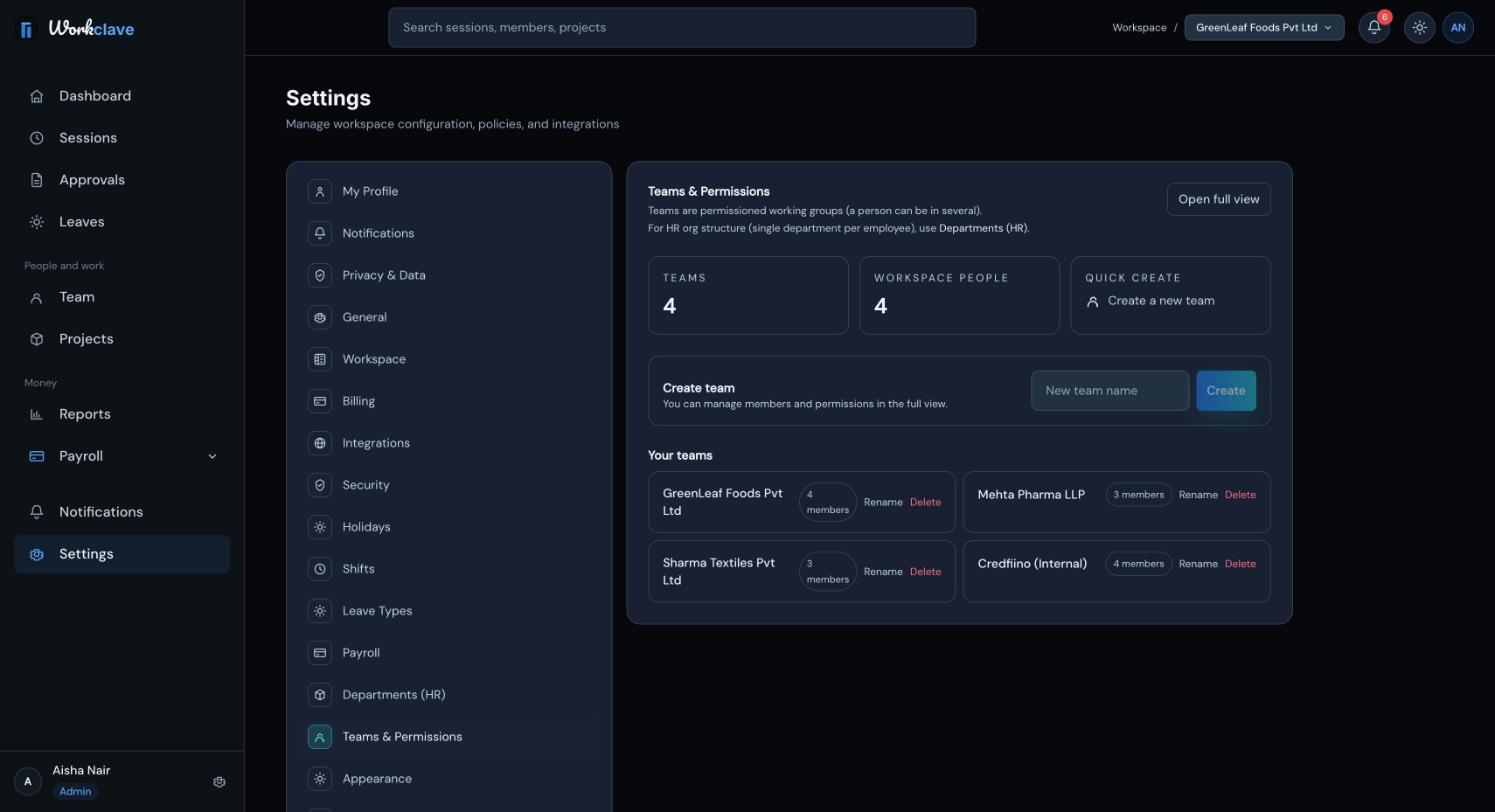
Workspace admins and team managers can create teams. The person who creates a team becomes its first member, as the team's admin.
Rename or delete a team
- Find the team under Your teams.
- To rename, click Rename, type the new name and click Save. Press Escape or click Cancel to stop.
- To delete, click Delete and confirm. The message says the team's members stay in the workspace.
You cannot delete a team that still has projects. Workclave shows “Move or delete its projects first; they hold the billable history.” Move each project to another team, or delete it, first.
Only workspace admins can rename or delete teams. Others see “You do not have permission to manage this team.”
Link projects to a team
- When you add a project, choose the team in the Team field.
- To move a project, open its details and change the Team field.
- Use the team filter on the Projects page and in the Reports timesheet.
See Projects.
Team membership today
At present, the web app has no screen to add people to a team. A team's member is the person who created it. This affects approval routing. See Approve sessions. Project members are separate, and you can set them on each project.
Related articles
Add projects, link them to a team or client, assign members, change status and read project details.
Create departments, place each person in one department and choose a Head of Department (HOD).
Pick Company, Accounting / CA firm or Agency so Workclave uses words that fit your work, such as Clients and Vendors.
Learn who reviews each session, how to approve or send back timesheets, and how to approve many at once.