Daily work
Track time with sessions
Start and stop sessions, pick a project, understand automatic lunch breaks and use the Sessions page.
What a session is
A session is one block of work. It has a start time, an end time and, optionally, a project. You can run one session at a time. Admins, managers and members can all track their own time.
Start a session
- Open the Dashboard or the Sessions page.
- In the list next to Start session, choose a project. Leave No project if the work has no project. The list appears only when your workspace has projects.
- Click Start session. You see “Session started”.
- The button area now shows a running timer and the project name, for example “on Website Revamp”.
Stop a session
- Click Stop session.
- Workclave shows how long the session ran, for example “Session stopped at 03:45:10”.
- The session now shows Waiting approval until a reviewer decides.
To switch projects, stop the current session and start a new one with the other project.
If you try to start a second session, Workclave shows “You already have a session running. Stop it first.”
Automatic lunch breaks
Your admin sets a lunch length in the workspace settings. When you stop a session that is at least that long, Workclave adds an automatic lunch break of that length in the middle of the session.
- The lunch shows as its own row called Lunch break (auto), marked Not billable.
- Your work session shows the lunch under its duration, for example “60m lunch taken off”.
- You get a notification called Auto lunch applied.
Breaks
The web app does not have a separate break button. For a break, stop your session. Start a new session when you return.
Use the Sessions page
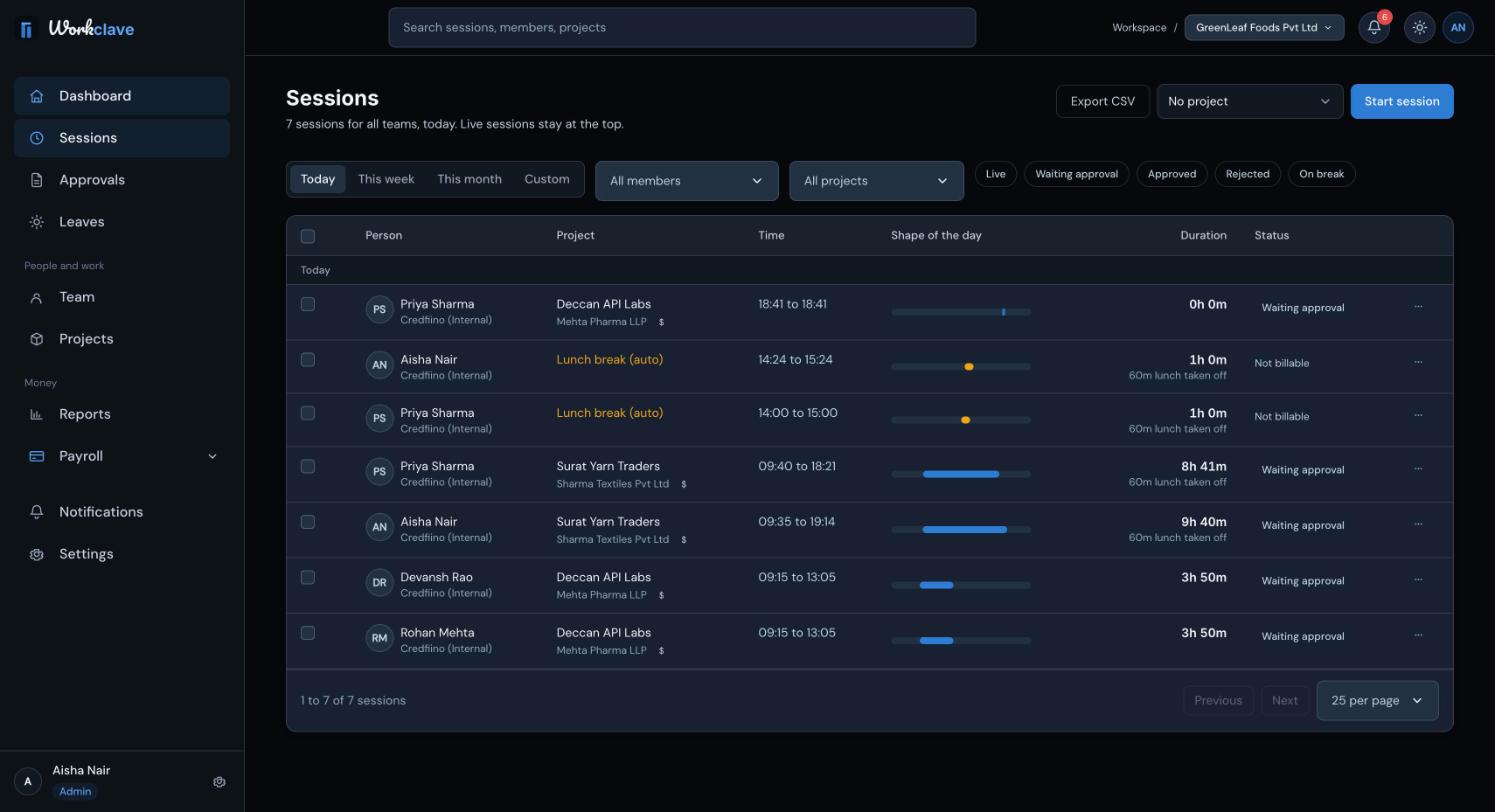
- Date range: Today, This week, This month or Custom.
- All members (admins and managers) and All projects filters.
- Status filters: Live, Waiting approval, Approved, Rejected, On break. Click Clear filters to reset.
- Rows are grouped by day. Running sessions appear at the top under Live now.
- Under each project name you see its team or client. A $ sign marks time logged on a project.
- The Shape of the day column shows where the session falls between 06:00 and 22:00.
- Choose 25 per page, 50 per page or 100 per page, and use Previous and Next.
Click Export CSV to download the rows on the current page. Tick rows to see Approve all, Export selected and Clear selection.
Session statuses
| Status | Meaning |
|---|---|
| Live | The session is running now. |
| Waiting approval | The session is finished and waits for a reviewer. |
| Approved | A reviewer approved it. It now counts for payroll. |
| Rejected | A reviewer sent it back. It does not count in reports or payroll. |
| On break | A break is running. |
| Not billable | Shown on lunch and break rows. |
Late marks
If you have a shift, a session that starts after the shift start time plus the grace minutes is marked late. See Shifts and late marks.
Related articles
What to do when a session is wrong, how to view its details, and the rules Workclave applies to session times.
Learn who reviews each session, how to approve or send back timesheets, and how to approve many at once.
The dashboard shows who is working, what waits for your decision and how many hours were logged. Members see their own day.
Define shifts with a start time and grace period so Workclave can mark late arrivals.