People and projects
Departments and HODs
Create departments, place each person in one department and choose a Head of Department (HOD).
What departments are for
Departments are HR units, such as Accounts, Audit, Sales or Engineering. Each person belongs to one department. Departments appear in profiles, the Reports department filter, the Departments report panel and the attendance register.
Create a department from the Team page
- Go to Team and open the Departments tab.
- Click Create department.
- Type a Department name, for example “Audit”.
- Optional: choose a Head of Department.
- Optional: add a Description.
- Click Create department.
Manage departments in Settings
- Go to Settings → Departments (HR).
- Click Add Department.
- Type the Department Name and choose a Department Manager, or No Manager.
- Click Save Changes.
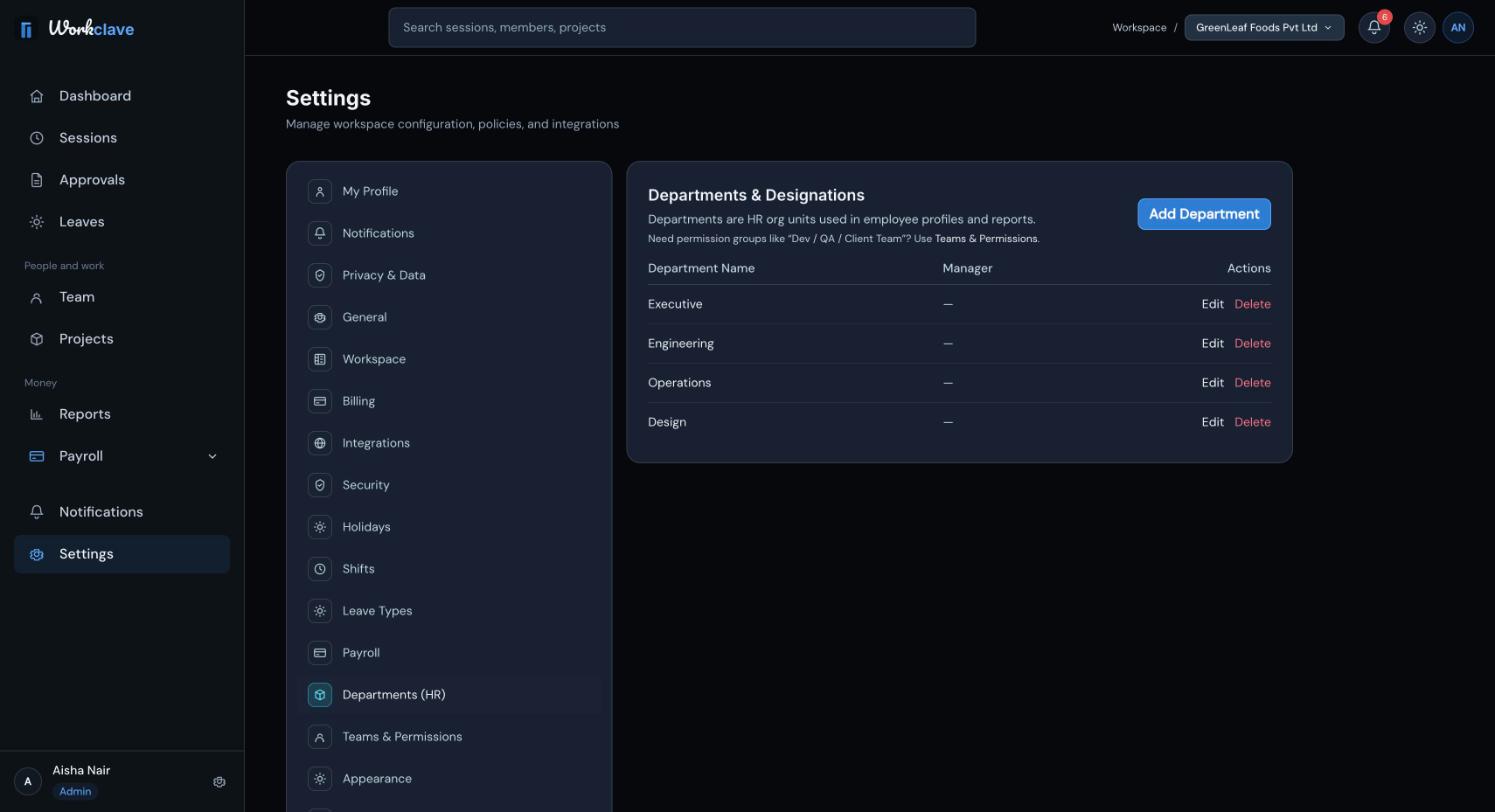
Use Edit to rename a department or change its manager. Use Delete to remove it. Only workspace admins can add, edit or delete departments.
Assign people to departments
- Go to Team and open the Members tab.
- For a person without a department, use Assign to department.
- For a person in a department, use Change department.
Admins can assign anyone to any department. Team managers can assign people only to their own department.
Choose an HOD
An admin can make a person HOD in three ways: click Promote to HOD on the Members tab, choose them as Head of Department when creating a department, or choose them as Department Manager in Settings.
- The HOD gets the Team manager role, unless they are already a workspace admin.
- The HOD sees Approvals, Team and Reports.
- Invites sent by an HOD place new people in the HOD's department.
- In reports, a manager sees people who report to them and people in the department they lead.
An HOD can approve a session only when Workclave routes it to them. See Approve sessions.
Related articles
See who is working right now, invite people, assign departments and promote HODs from one page.
Workclave has three roles: Workspace admin, Team manager and Member. See what each role can do and how roles change.
Create, rename and delete teams. CA firms and agencies use teams as clients and attach projects to them.
The Reports page shows this month's hours, attendance, late check-ins, leave, a weekly digest, a timesheet by project and the attendance register.