Guides by industry
Workclave for CA and accounting firms
A complete setup for a CA firm: clients, each client's vendors, staff, time logged per vendor, approval and a monthly timesheet CSV per client for billing.
How Workclave fits a CA firm
This guide uses a demo firm, Credfiino (Demo), with 10 client companies. Each client has several vendors whose accounts the firm handles. Staff log time per vendor. At month end, the firm bills each client for the approved hours.
| Workclave | In your firm | Example |
|---|---|---|
| Workspace | Your firm | Credfiino (Demo) |
| Client (a team) | A client company | Sharma Textiles Pvt Ltd |
| Vendor (a project) | A vendor or work item you handle for that client | Surat Yarn Traders |
| Member | Article assistant, accountant or staff | Priya Sharma |
| Session | Time spent on one vendor | 09:40 to 13:10 on Surat Yarn Traders |
Step 1: Set the business type and add your clients
- Go to Settings → Workspace.
- In What kind of business are you?, choose Accounting / CA firm.
- Click Save Changes. The page reloads. Projects are now called Vendors and teams are called Clients.
- Go to Settings → Clients & Permissions.
- Type the client name in New client name, for example “Sharma Textiles Pvt Ltd”.
- Click Create.
- Repeat for each client. For 10 clients, you create 10 entries.
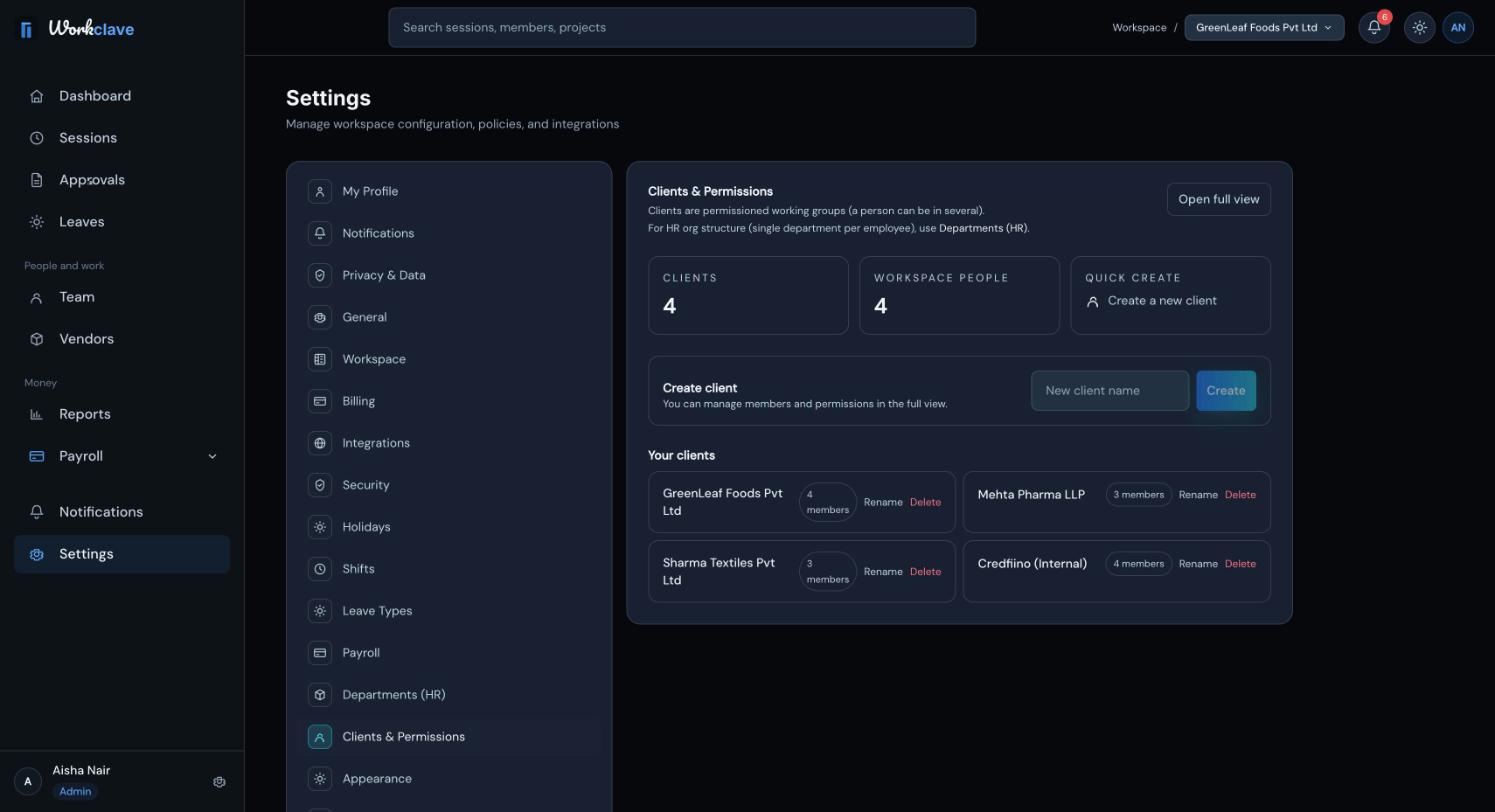
Use the client's legal name, such as “Mehta Pharma LLP”. The name appears in timesheet columns and in the CSV.
Step 2: Add vendors for each client
- Click Vendors in the left menu.
- Click Add Vendor.
- Type the Vendor Name, for example “Surat Yarn Traders”.
- In Client, choose the client, for example “Sharma Textiles Pvt Ltd”.
- Click Create.
- Repeat for every vendor of every client.
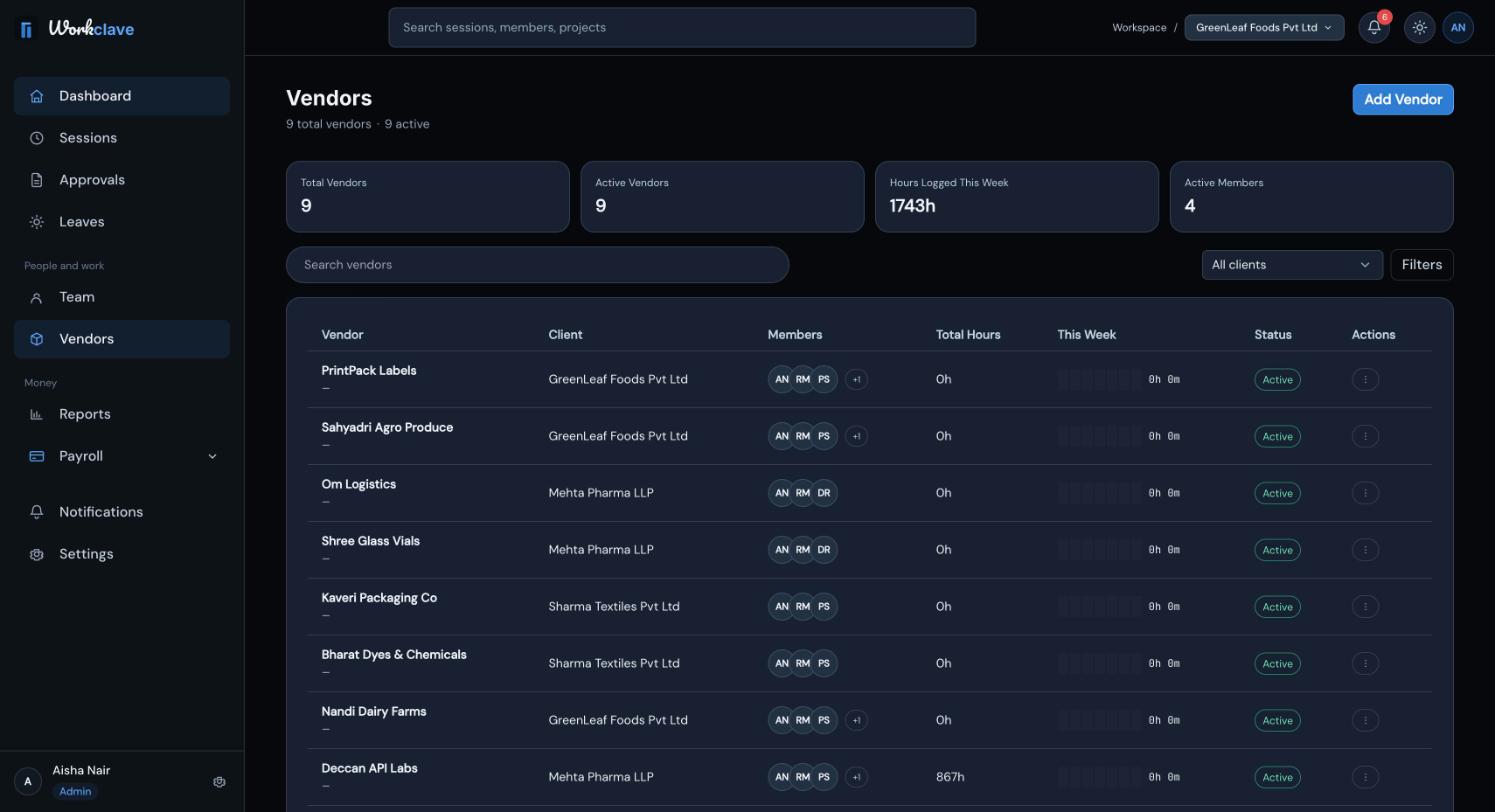
Use the client filter on the Vendors page to see one client's vendors. To move a vendor to another client, open it and change the Client field.
Step 3: Invite staff and put them on vendors
- Go to Team and click Invite to workspace.
- Enter each staff member's firm email address.
- Click Send invites ->.
- Ask each person to sign up and verify their email before anything else. See Invite your team.
When your staff have joined, staff each vendor:
- On the Vendors page, click ⋮ on a vendor.
- Click Assign Members.
- Search for and select the staff who work on this vendor.
- Click Save.
- Repeat for each vendor.
This shows who is staffed on each vendor. It also limits the vendors a member sees on the Vendors page.
Staff can still pick any vendor in the list next to Start session. Remind them to choose the correct vendor.
Step 4: Staff log time per vendor
- The staff member opens the Dashboard or Sessions.
- In the list next to Start session, they choose the vendor, for example “Surat Yarn Traders”.
- They click Start session and do the work.
- They click Stop session when the work is done or when they switch vendors.
- For the next vendor, they choose it and click Start session again.
Example day for Priya Sharma: 09:40 to 13:10 on Surat Yarn Traders (Sharma Textiles Pvt Ltd), then 14:10 to 18:20 on Deccan API Labs (Mehta Pharma LLP). On the Sessions page, each row shows the vendor and, below it, the client.
Step 5: Approve the time
Each finished session goes to one reviewer. Workclave first looks for a manager of the client that owns the vendor. This works only when both the manager and the staff member belong to that client. Otherwise the session goes to a manager of the person's own team, or to a workspace admin.
At present, the web app cannot add people to a client. So in most firms, a workspace admin, such as the partner who created the workspace, approves all time. Workspace admins can approve any session.
- The partner opens Approvals.
- They check each timesheet: worked time, vendor and lunch.
- They click Approve timesheet, or write a note and click Send back.
- To approve many at once, they tick the timesheets and click Approve N selected.
Step 6: Download the monthly timesheet per client
- On the last working day of the month, clear all approvals.
- Go to Reports and find Timesheet by vendor.
- In the client list, choose the client, for example “Sharma Textiles Pvt Ltd”.
- Check that Awaiting approval shows 0h 0m.
- Click Download CSV.
- Repeat for each client.
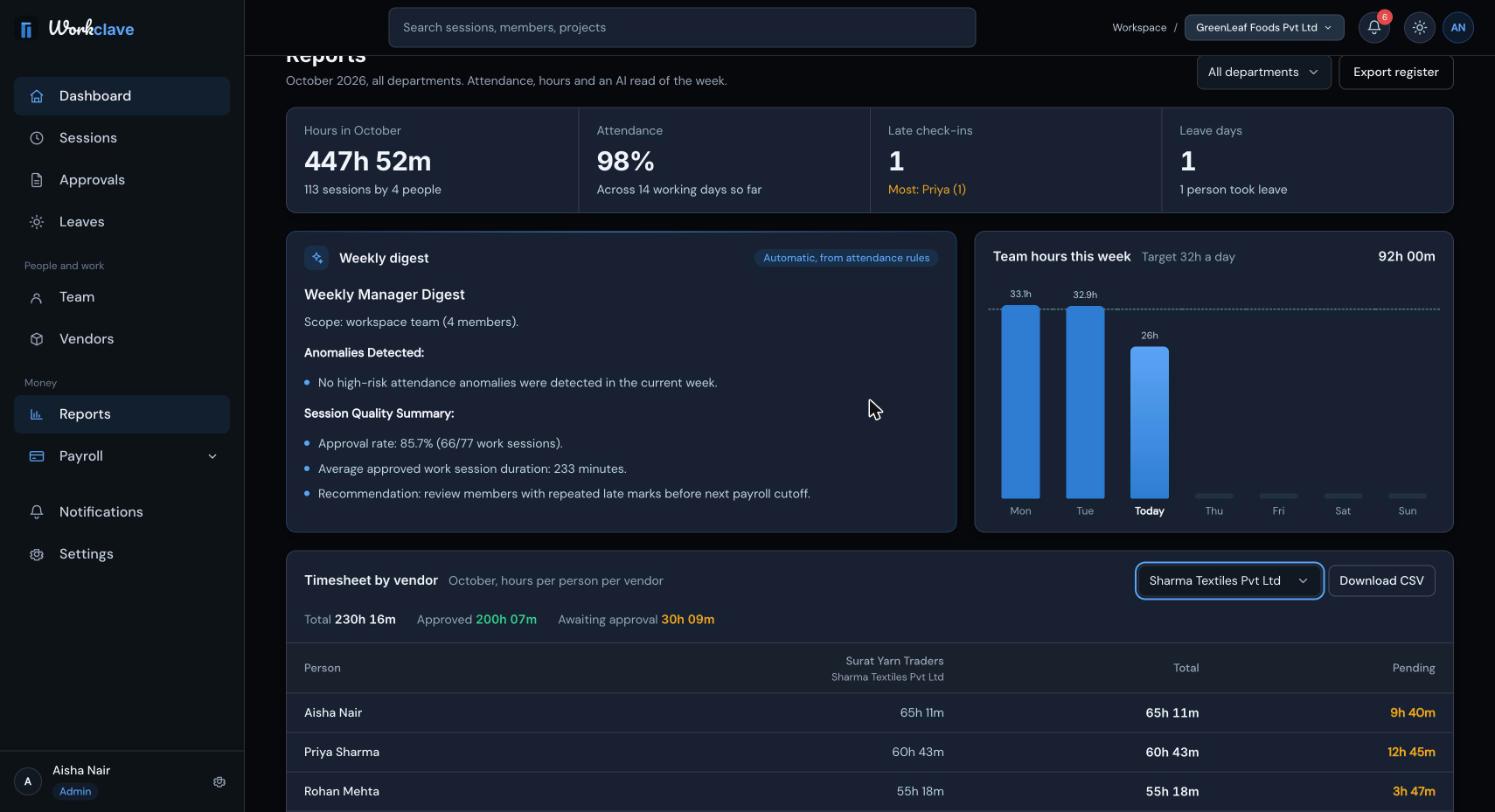
In the CSV, each vendor column is named like “Surat Yarn Traders (Sharma Textiles Pvt Ltd)”. Hours are decimals. Example: 12.50 approved hours at ₹1,500 per hour is ₹18,750 before GST.
The Reports page shows only the current month. If you miss month end, use the Sessions page export. See Timesheets for a past month.
Workclave tracks hours, not fees. Hourly rates are not stored yet, so the Default billing rate field on the vendor form is not saved. Apply your rates and GST in your spreadsheet or invoicing software.
Month-end checklist
- All sessions for the month are approved or sent back.
- Every client's Awaiting approval shows 0.
- One CSV is downloaded per client.
- The attendance register is exported for your records.
- If you run payroll in Workclave, leave is approved and payroll is calculated.
Related articles
Use the timesheet by project to see approved and pending hours per person and project, filter by client, and download a CSV for billing.
Create, rename and delete teams. CA firms and agencies use teams as clients and attach projects to them.
Add projects, link them to a team or client, assign members, change status and read project details.
Pick Company, Accounting / CA firm or Agency so Workclave uses words that fit your work, such as Clients and Vendors.